






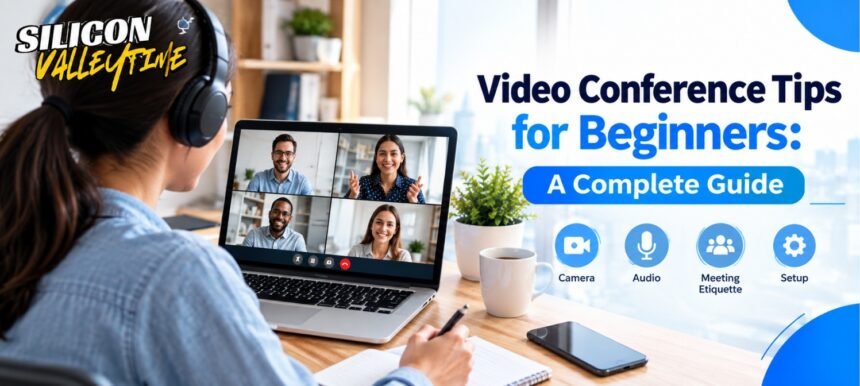

Joining your first video meeting can feel a little awkward. You may wonder where to look, what to say, whether your microphone is working, or what happens if your internet suddenly drops.
The good news is that video conferences become much easier once you understand a few basic rules. Whether you are attending an online class, a job interview, a business meeting, or a team call, the right Video conference tips can help you feel prepared and professional.
This guide explains how video conferencing works, why preparation matters, and what beginners can do to make every online meeting smoother.
What Is a Video Conference?
A video conference is an online meeting that allows people in different locations to communicate through live video and audio. Participants can usually see and hear one another using a computer, smartphone, tablet, webcam, and microphone.
Popular video conferencing platforms also offer features such as screen sharing, chat, recording, virtual backgrounds, captions, and file sharing.
Video conferencing is now common in workplaces, schools, interviews, training sessions, and remote teams. Understanding the basic setup can make your first few meetings much less stressful.
For a broader background, you can also refer to Wikipedia’s overview of videotelephony.
Why Are Video Conference Tips Important?
Good preparation can make a major difference in an online meeting. Unlike a face-to-face meeting, technical problems can interrupt communication without warning.
Simple preparation helps you:
- Avoid microphone and camera problems
- Join meetings on time
- Look and sound more professional
- Stay focused during the discussion
- Communicate clearly with other participants
- Handle common technical problems
- Feel more confident when speaking
For example, imagine joining an important work meeting and discovering that your microphone is muted. While you are trying to fix it, the conversation continues without you. Testing your equipment a few minutes earlier could have prevented the problem.
Key Benefits of Better Video Conferencing
Using effective video meeting habits is useful for both beginners and experienced users.
Better Communication
Clear audio and video make it easier for participants to understand each other. Speaking at a comfortable pace and using a reliable microphone can reduce misunderstandings.
A More Professional Impression
Small details matter during business meetings and interviews. A quiet location, clean background, suitable lighting, and professional appearance can help you make a positive impression.
Fewer Technical Problems
Testing your internet connection, camera, and microphone before a meeting gives you time to solve problems before everyone is waiting.
More Productive Meetings
When participants know how to use features such as screen sharing, chat, and mute controls, meetings can move more efficiently.
10 Video Conference Tips for Beginners
1. Test Your Equipment Before the Meeting
Do not wait until the meeting starts to discover that your microphone does not work.
Check your:
- Webcam
- Microphone
- Speakers or headphones
- Internet connection
- Charging level
- Video conferencing software
Open the meeting application beforehand and make a quick test call if the platform provides that option.
2. Join a Few Minutes Early
Joining early gives you time to solve unexpected problems.
Try to enter the meeting 5–10 minutes before the scheduled time, especially if it is an interview, presentation, or important business call.
This also allows you to check your camera angle and audio settings without making other participants wait.
3. Choose a Quiet Location
Background noise can make it difficult for others to hear you.
If possible, choose a quiet room away from televisions, loud conversations, traffic, and other distractions.
If you cannot find a completely quiet space, headphones with a good microphone may help reduce background noise.
4. Position Your Camera Correctly
Camera placement can strongly affect how professional you appear.
Try to position the camera at approximately eye level. Your face should be clearly visible without being too close to the lens.
Avoid placing a laptop on a very low table if it creates an uncomfortable upward camera angle.
A simple laptop stand or a stack of books can sometimes improve the camera position.
5. Pay Attention to Lighting
Good lighting makes your video easier to see.
The best simple setup is usually a light source in front of you rather than directly behind you. A window behind your head, for example, can make your face appear dark.
You do not always need expensive equipment. A well-positioned lamp or natural light can often make a noticeable difference.
6. Keep Your Background Tidy
Your background does not need to look perfect, but it should not distract from the meeting.
Before joining, quickly check what the camera can see.
You can also use a virtual background or background blur if your meeting platform supports it. However, a simple real background is often perfectly acceptable.
7. Mute Yourself When You Are Not Speaking
One of the easiest video conference habits to learn is using the mute button.
If you are not speaking, muting your microphone can prevent background sounds from interrupting the meeting.
Remember to unmute before talking. If you frequently forget, check the meeting interface before starting your response.
8. Look at the Camera When Speaking
It can feel strange at first, but looking toward the camera can make your communication feel more direct.
You do not have to stare at the camera throughout the entire meeting. Naturally looking between the screen and camera is fine.
During an important introduction or presentation, briefly looking at the camera can help create a stronger sense of connection.
9. Speak Clearly and Avoid Interrupting
Online conversations can have a slight delay, especially when someone’s internet connection is unstable.
Speak clearly and give other participants enough time to finish their sentences.
If several people start speaking at once, pause and let the conversation settle before continuing.
Useful phrases include:
- “Go ahead.”
- “Sorry, you first.”
- “Could you repeat that?”
- “I think there is a slight audio delay.”
These simple phrases can prevent confusion.
10. Learn the Basic Meeting Controls
Before attending important meetings, learn where the main controls are located.
You should know how to:
- Mute and unmute your microphone
- Turn your camera on and off
- Share your screen
- Open the meeting chat
- Raise your hand
- Leave the meeting
You do not need to learn every advanced feature immediately. Start with the controls you are most likely to use.
How to Prepare for a Video Conference Step by Step
If you want a simple routine, use this checklist before every important meeting.
Step 1: Check the Meeting Details
Confirm the date, time, meeting link, and platform.
Step 2: Prepare Your Environment
Choose a quiet location and remove unnecessary distractions.
Step 3: Test Your Technology
Check your internet, camera, microphone, headphones, and device battery.
Step 4: Open Your Materials
Keep documents, notes, presentations, or websites you may need ready before the meeting begins.
Step 5: Join Early
Enter the meeting a few minutes ahead of time and check your audio and video.
Step 6: Participate Professionally
Listen carefully, avoid unnecessary interruptions, and use the chat or hand-raise feature when appropriate.
Step 7: End the Meeting Properly
Before leaving, make sure any final questions have been answered and that you have noted important tasks or deadlines.
Common Video Conference Mistakes to Avoid
Even experienced users sometimes make simple mistakes. Beginners should especially watch out for these problems:
- Joining without testing the microphone
- Sitting in a noisy environment
- Using poor lighting
- Forgetting to mute background noise
- Sharing the wrong screen
- Looking away from the meeting for long periods
- Speaking over another participant
- Keeping unnecessary applications open
- Joining late without explanation
- Forgetting to check whether the camera is on
A little preparation can prevent most of these issues.
What Should You Do If Your Internet Stops Working?
If your connection becomes unstable, stay calm.
First, turn off your camera if necessary to reduce bandwidth usage. If the problem continues, disconnect from other devices or applications using the internet.
If you are completely disconnected, try rejoining the meeting. For important meetings, keeping your phone nearby can provide a backup option if the meeting platform supports mobile access.
If you know your internet is unreliable, inform the meeting organizer in advance when appropriate.
FAQs About Video Conference Tips
What should a beginner do before a video conference?
A beginner should check the meeting link, test the microphone and camera, choose a quiet location, check the internet connection, and join a few minutes early. Preparing these basics can prevent common technical problems and reduce stress.
How can I look professional on a video call?
Use good front-facing lighting, position your camera around eye level, keep your background tidy, and wear clothing suitable for the meeting. Looking at the camera when speaking and avoiding distractions can also make your communication appear more professional.
What should I do if my microphone does not work?
First, check whether your microphone is muted. Then verify that the correct microphone is selected in the meeting application. If it still does not work, reconnect your headphones or microphone and rejoin the meeting if necessary.
Should I keep my camera on during a video conference?
It depends on the meeting’s purpose and the organizer’s expectations. For interviews, introductions, presentations, and smaller team meetings, cameras are often useful. In larger meetings, participants may sometimes turn cameras off when they are not actively speaking.
How early should I join an online meeting?
For most meetings, joining 5–10 minutes early is a good habit. For important interviews, presentations, or client meetings, arriving early gives you extra time to solve technical issues.
What should I do if I accidentally interrupt someone?
Simply stop, apologize briefly, and allow the other person to continue. Online conversations can have delays, so accidental interruptions are common. There is usually no need to make the situation more complicated.
What are the most important video conference tips for beginners?
The most useful habits are testing your equipment, joining early, using good lighting, choosing a quiet location, muting when necessary, speaking clearly, and learning basic meeting controls. These simple steps cover most common beginner problems.
Conclusion
Video conferencing does not have to be complicated. Once you understand the basics, most online meetings become much easier to manage.
The most important video conference tips are simple: test your technology, join early, choose a quiet environment, position your camera correctly, use good lighting, and communicate clearly.
You do not need expensive equipment or advanced technical skills to participate successfully. A little preparation and good meeting etiquette can help you feel more confident and make a better impression.
Before your next online meeting, run through the basic checklist in this guide. After a few meetings, these habits will become second nature.
For More Informative Articles Visit: Silicon Valley Time