





Key Takeaways
- Understand what Google Gemini is and why it replaced Google Assistant on some devices.
- Learn the specific steps to turn off gemini on Android phones and revert to the classic Google Assistant.
- Discover how to disable Gemini features within Google Workspace apps like Gmail and Docs.
- Find troubleshooting tips for when the settings seem hard to locate.
- Explore privacy implications and performance benefits of disabling AI assistants.
Introduction: Why You Might Want to Switch Back
In the rapidly evolving world of technology, artificial intelligence is becoming integrated into everything we use. Google’s latest offering, Gemini, has started replacing the familiar Google Assistant on many Android devices. While this new AI promises advanced capabilities, not everyone is ready to make the switch. You might find yourself frustrated with the new interface, missing the old voice commands, or simply wanting a break from AI features. If you are looking for a way to regain control over your digital assistant, you have come to the right place.
Many users feel that the classic Google Assistant was faster for simple tasks like setting alarms or controlling smart home lights. Others are concerned about the data privacy implications of a more powerful AI running on their personal phone. Whatever your reason, the good news is that you are not stuck with it forever. It is entirely possible to turn off gemini and restore the functionality you were comfortable with. This guide is designed to be a comprehensive resource, walking you through every step of the process in a friendly, easy-to-understand manner. We will cover everything from Android system settings to specific Google Workspace adjustments so you can customize your tech experience exactly how you like it.
What Is Google Gemini and How Did It Get on My Phone?
Before we dive into the steps to remove it, it helps to understand exactly what we are dealing with. Gemini is Google’s most capable AI model to date, designed to understand and generate text, code, images, and more. It is essentially a super-powered chatbot that Google is integrating into its ecosystem to replace the older Google Assistant. You might have noticed a new icon or a different interface when you long-press your power button or say “Hey Google.” This is because Google pushed an update that encourages users to opt-in to Gemini as their primary digital helper.
For many people, this transition happened almost automatically or through a pop-up notification that was easy to click through without reading fully. Suddenly, the simple assistant that used to just tell you the weather is now trying to have complex conversations or draft emails for you. While this is impressive technology, it can feel like overkill for someone who just wants to set a timer for pasta. Understanding that Gemini is an app-based overlay that replaces the Assistant service helps clarify how we can reverse the process. It isn’t a permanent operating system change; it is a setting preference that you have the power to change back.
Step-by-Step: How to Turn Off Gemini on Android
The most common request we see is users asking how to turn off gemini on android. The process is relatively straightforward, but the settings can be tucked away in menus you might not visit often. To start, you need to access the Gemini app itself or the Google app settings. Because Gemini lives as a digital assistant choice on Android, you aren’t necessarily “uninstalling” it in the traditional sense, but rather switching your default assistant back to the legacy version. This distinction is important because it means you don’t lose any data; you simply change which brain your phone uses to answer your voice commands.
Here is the most reliable method. Open the Google app on your Android device (the one with the ‘G’ logo). Tap on your profile picture in the top right corner to open the menu. Look for “Settings” and then tap on “Google Assistant.” In this menu, you should see an option labeled “Digital assistants from Google.” This is the control center where you can decide who answers you.
When you tap this, you will see two options: Gemini and Google Assistant. Simply select Google Assistant. A pop-up might appear warning you about the features you will lose, but if your goal is to turn off gemini android, you can confidently confirm your choice. Once selected, your phone will instantly revert to the classic behavior.
Reverting to Google Assistant: What Changes?
When you successfully turn off gemini, you might be wondering what exactly is going to change on your device. The immediate difference you will notice is the speed and familiarity of interactions. Google Assistant is optimized for quick, command-based interactions. When you ask it to “turn on the living room lights” or “remind me to buy milk,” it usually executes the action immediately without trying to generate a conversational response. Gemini, being a generative AI, sometimes processes these requests differently, which can lead to slight delays or more verbose answers that aren’t necessary for simple tasks.
Furthermore, some specific device controls that Google Assistant mastered over the years might not be fully supported by Gemini yet. For example, certain routines or third-party app integrations work more seamlessly with the older Assistant. Visually, the overlay on your screen will change back to the familiar Assistant glow at the bottom of the screen rather than the Gemini interface. You will also regain features like “What’s on my screen,” which some users found missing or harder to access after the upgrade. Essentially, reverting brings back the stable, utility-focused helper that has been a staple of Android for years, prioritizing function over conversation.
How to Turn Off Gemini in Gmail and Google Docs
Gemini isn’t just on your phone’s home screen; it has also infiltrated your inbox and documents. If you use Google Workspace, you might be wondering how to turn off gemini in gmail or Google Docs. These features often appear as a “Help me write” button or a star icon that offers to summarize emails or draft replies. While useful for some, many professionals find these pop-ups distracting or are concerned about AI reading their private correspondence. Disabling these features requires a different approach than the Android system settings because they are account-level preferences.
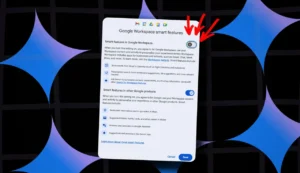
To turn off gemini in gmail, you generally need to manage your Google Workspace settings. If you are using a personal Google account, these features might be part of “Google Workspace Labs” or a premium Google One AI subscription. To check this, open Gmail on your desktop browser. Click the settings gear icon and look for any tabs related to “Labs” or “General.”
If you are enrolled in a beta program for AI features, there will be an option to opt-out. If you are an enterprise user, your IT administrator controls these settings. However, for personal users who subscribed to the AI Premium plan, canceling that subscription or disabling the specific AI features in the account management page is the primary way to remove these prompts from your writing flow.
Is It Possible to Completely Uninstall the Gemini App?
A frequent question is, “Can I just delete the app entirely?” The answer depends on how you acquired it. If you downloaded the standalone Google Gemini app from the Play Store, then yes, you can uninstall it just like any other application. Long-press the app icon, drag it to the trash bin or select “Uninstall,” and it is gone. However, simply uninstalling the app might not fully reset your assistant preferences if you haven’t switched the setting back to Google Assistant first. It is always safer to switch the digital assistant setting as described earlier before deleting the app to avoid any glitches where your phone doesn’t know which assistant to trigger.
If Gemini came pre-installed or was activated through the main Google app update, you cannot “uninstall” it in the traditional sense because it is part of the core Google app architecture. In this case, your only option is to disable it or switch away from it. This is similar to how you cannot completely uninstall Google Chrome or Gmail from most Android phones. The goal here is to neutralize it so it doesn’t interfere with your usage. By switching your default assistant and turning off notifications, you effectively achieve the same result as uninstallation: the AI stays dormant and out of your way.
How Do I Turn Off Gemini Notifications?
Even if you stop using the service, you might still get pesky notifications urging you to try it again or highlighting new features. If you are asking, “how do i turn off gemini notifications specifically?”, the process is part of your standard Android notification management. Constant pings from an app you don’t want to use can be incredibly annoying and disruptive to your day. Fortunately, Android gives users granular control over what alerts get through, allowing you to silence the AI without silencing important system messages.
To do this, go to your phone’s “Settings” and select “Apps” or “Applications.” Find “Google” or “Gemini” in the list (depending on if you have the standalone app). Tap on “Notifications.” Here, you will see a list of different notification categories. Look for categories specifically named “Gemini,” “New features,” or “Tips and tricks.” Toggle the switches to the “Off” position. This ensures that while the software might still exist on your phone’s storage, it won’t pop up on your lock screen or vibrate your phone to demand attention. It is a peaceful way to maintain control over your device’s attention economy.
Privacy Concerns: Why Users Choose to Disable AI

One of the biggest drivers for people searching turn off gemini is privacy. Generative AI models require vast amounts of data to learn and improve. When you interact with Gemini, your conversations, prompts, and the context of your queries are processed by Google’s servers. Google offers controls over this data, but for privacy-conscious individuals, the safest option is often abstinence. There is a valid concern that having an AI that can “read” your screen or summarize your emails involves a level of surveillance that feels uncomfortable.
When you switch back to the standard Google Assistant or disable these features, you are often reverting to a model of data processing that is more transactional and less interpretative. While Google Assistant still collects data, it isn’t necessarily analyzing the semantic depth of your content to generate creative writing or new ideas. By disabling the generative AI components, you limit the scope of data being fed into these large language models (LLMs). For users who handle sensitive information or simply value digital minimalism, turning off these advanced features is a proactive step toward digital hygiene and data security.
Comparison: Google Assistant vs. Gemini
|
Feature |
Google Assistant |
Google Gemini |
|---|---|---|
|
Primary Function |
Device control & simple queries |
Content generation & complex reasoning |
|
Response Style |
Direct, short answers |
Conversational, detailed paragraphs |
|
Smart Home Control |
Highly optimized and fast |
evolving, sometimes slower |
|
Email/Doc Integration |
Limited (Calendar/Reminders) |
Deep integration (Drafting/Summarizing) |
|
Privacy Footprint |
Command-based data |
Context-heavy conversational data |
Troubleshooting: Why Can’t I Find the Setting?
Sometimes, you might follow the instructions to turn off gemini and hit a dead end. Perhaps the menu options look different, or the “Digital assistants” setting is missing. This often happens because Google rolls out updates in waves, and interfaces can vary slightly between different phone manufacturers (like Samsung vs. Pixel vs. Motorola) or Android versions. It can be incredibly frustrating when your screen doesn’t match the tutorial.
If you can’t find the switch, try searching within the Settings app. Use the search bar at the very top of your Settings menu and type “Assistant.” Look for results like “Assistant settings” or “Default digital assistant.” Another trick is to open the Google app, tap your profile, and look for “Labs” or “Experiments.” Sometimes, Gemini opt-ins are hidden there. Also, ensure your Google app is updated; ironically, sometimes an outdated app won’t show the toggle to switch back properly because the new interface hasn’t fully loaded the controls. If all else fails, checking online forums or the official Google support page for your specific device model can provide the missing clue.
Removing Gemini from the “Hey Google” Wake Word
The “Hey Google” wake word is iconic, but you want it to wake up the right assistant. When you enable Gemini, it hijacks this wake word. If you have already switched your default assistant back to Google Assistant using the steps above, the wake word should automatically revert to triggering the old Assistant. However, if you find that saying “Hey Google” still launches the Gemini interface, there might be a glitch or a lingering setting that needs correction.
To fix this, go back to Google Assistant settings. Navigate to “Hey Google & Voice Match.” Toggle the “Hey Google” switch off, wait a few seconds, and then toggle it back on. This forces the system to re-register your voice preference with the currently active assistant. Retraining your voice model can also help. In the same menu, look for “Retrain voice model.” This process ensures that the operating system links your voice command strictly to the active service, which should now be the classic Assistant. This clears up any confusion the software might have about which bot is supposed to answer your call.
What to Do If You Don’t Have the Option to Switch
There are rare cases where users report they cannot find the option to how to turn gemini off. This might occur on new devices that ship with Gemini as the native default, or in specific regions where the rollout is handled differently. If you find yourself in a situation where the “Digital assistants from Google” menu is completely absent, you might need to take a more drastic approach to regain the old functionality.
One workaround is to uninstall updates for the Google app. Go to Settings > Apps > Google > tap the three dots in the corner > “Uninstall updates.” This rolls the app back to the factory version, which likely predates the Gemini integration. However, this is a temporary fix, as the app will try to update again. A better long-term solution is to look for the standalone “Google Assistant” app in the Play Store and install it. Launching this app can sometimes force a prompt asking which assistant you prefer, triggering the menu that was previously hidden. It forces the system to acknowledge that two options exist and asks you to make a choice.
Impact on Battery Life and Performance
Does running a powerful AI model drain your battery? Many users suspect that Gemini, being more resource-intensive, consumes more power than the lightweight Google Assistant. While cloud-based processing handles the heavy lifting, the constant data synchronization and the graphical overlay can have a marginal impact on your device’s stamina. If you are struggling with battery life, deciding to turn off gemini could potentially squeeze a bit more juice out of your day.
When you revert to the simpler assistant, you are using a piece of software that has been optimized over nearly a decade to run efficiently on mobile hardware. It requires fewer background processes to maintain readiness. Users with older phones, in particular, might notice that their device feels snappier and more responsive without the generative AI trying to predict their next move. While the difference might not be night and day on a brand-new flagship phone, for the average user, minimizing background activity is always a solid strategy for performance optimization.
User Experience: Voices from the Community
We scoured forums and tech communities to see why real people are searching for how do i turn off gemini. The feedback is diverse but follows a few common themes. Many parents are frustrated because Gemini lacks some of the family safety controls or simple “broadcast” features they used with their kids via Google Home. Others are visually impaired users who found that Gemini’s interface was less accessible or didn’t play as nicely with screen readers as the classic Assistant did.
On the professional side, users who rely on Google Workspace found that the AI suggestions in Gmail were sometimes presumptuous, offering casual replies to formal business emails. These real-world anecdotes highlight that technology isn’t “one size fits all.” What works for a tech enthusiast who loves experimenting with LLMs might be a hindrance to a busy parent or a professional who needs reliability over novelty. By providing the option to switch back, Google acknowledges that user preference is paramount. Reading these experiences validates that if you want to switch back, you are definitely not alone.
Future-Proofing: Will Gemini Come Back?
If you successfully turn off gemini android, is it gone for good? It is important to be realistic about the direction of technology. Google has made it clear that Gemini is the future of their assistant technology. It is highly likely that in the future, the “classic” Google Assistant will be retired completely, and Gemini will become the only option. However, that day is not today. For now, the two systems coexist.
It is possible that a future Android update will re-enable it or prompt you again to switch. Stay vigilant when clicking through “Welcome” screens after system updates. Read the fine print before hitting “I agree.” If it does come back, simply repeat the steps in this guide. Technology companies often push their latest products aggressively, but user settings are usually respected if you know where to look. By staying informed and knowing how to navigate your settings, you keep the control in your hands, not the manufacturer’s.
Conclusion
Taking control of your digital environment is essential for a stress-free tech life. Whether you want to improve your privacy, regain faster voice commands, or simply declutter your interface, knowing how to turn off gemini empowers you to use your device on your own terms. We have covered how to disable it on Android, remove it from Gmail, and troubleshoot common issues. Remember, technology should serve you, not the other way around. If the latest AI feature doesn’t make your life easier, you have every right to disable it.
For more insights into managing your tech and staying updated on the latest digital trends, be sure to visit Silicon Valley Time. We are constantly updating our guides to help you navigate the ever-changing landscape of personal technology. Also, if you are interested in the broader history and development of artificial intelligence, you can find a wealth of information on Wikipedia.
Frequently Asked Questions (FAQs)
1. If I turn off Gemini, will I lose my Google Assistant?
No, disabling Gemini typically involves switching back to the classic Google Assistant. You will regain the older, familiar version of the assistant rather than losing voice help entirely.
2. Can I use Gemini and Google Assistant at the same time?
Generally, no. On Android, you must choose one as your primary digital assistant. You cannot have both active as the default “Hey Google” responder simultaneously.
3. Does turning off Gemini delete my data?
Switching the assistant off does not delete the data associated with your Google account. However, it stops new interactions from being processed by the Gemini model. You can manage your past activity in your Google Account settings.
4. How to turn off Gemini in Gmail specifically?
To disable Gemini features in Gmail, you need to check your Google Workspace settings or Google One AI Premium subscription. You may need to opt out of “Workspace Labs” or disable “Smart features and personalization” in Gmail settings.
5. Is Gemini costing me money?
The basic version of Gemini on Android is free. However, advanced features in Gmail and Docs (Gemini Advanced) are often part of a paid Google One subscription. Canceling this subscription will disable those premium features.