







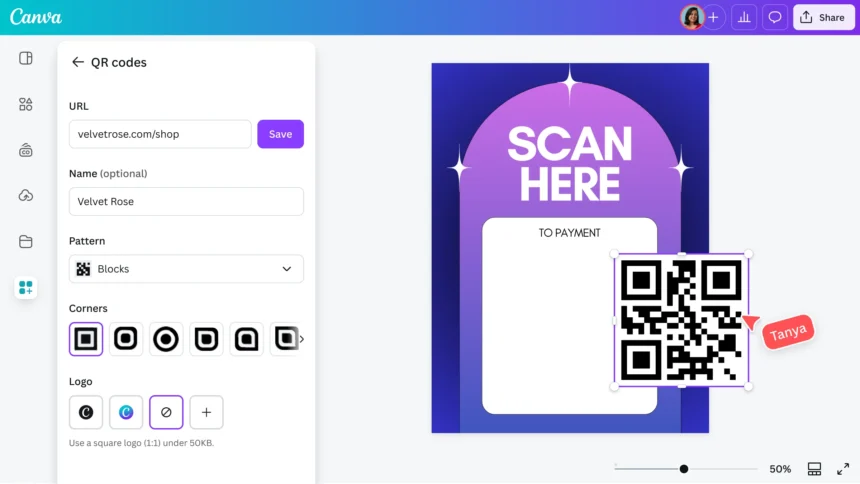

The Canva QR code generator is one of those little tools that quietly makes your life easier. You’ve probably scanned a QR code at a restaurant or on a flyer. Now imagine making your own in a few clicks, no design skills needed.
That’s exactly what this built-in feature does. And the best part? It sits right inside a graphic design platform you might already use.
Let me walk you through how it works and why so many people rely on it.
Read more: Donna Mills: The Life, Career, and Legacy of TV’s Most Iconic Villain
What Is the Canva QR Code Generator?
Simply put, it’s a free QR code maker built into Canva. You type in a link, and it spits out a scannable code you can drop into any design.
Here’s the thing — you don’t need a separate app or website. The QR code lives right next to your posters, flyers, and social posts.
How Does a QR Code Actually Work?
A QR code is a small square pattern that stores information. When someone points their phone camera at it, it opens a link or shows text.
To be honest, most people just care about one thing: it takes you somewhere fast. That’s the whole magic behind it.
Why Use the Canva QR Code Generator?
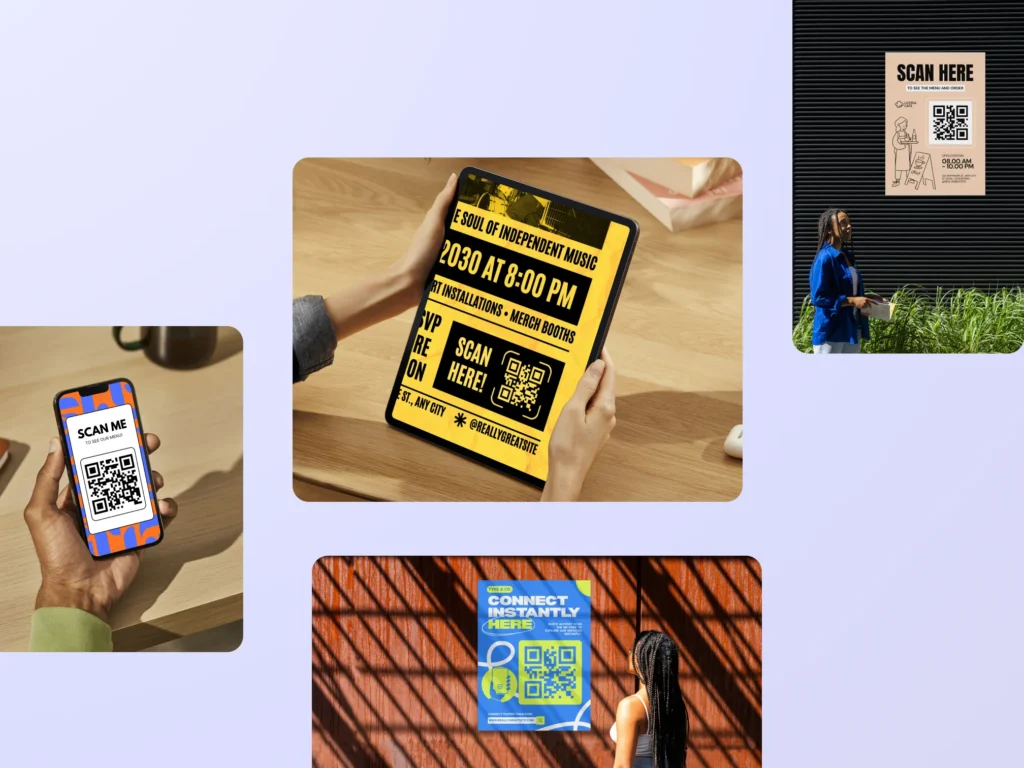
There are plenty of QR tools out there. So why bother with this one?
It’s Already Where You Design
You don’t have to jump between tabs. You create your design and add the code in the same place. That saves real time.
It’s Beginner-Friendly
You don’t need to understand tech jargon. If you can copy and paste a link, you can make a custom QR code.
It Looks Clean
The codes blend right into your design. No blurry images or awkward sizing.
How to Use the Canva QR Code Generator Step by Step
Alright, let’s get practical. Here’s how to make your first code.
Step 1: Open or Create a Design
Log into Canva and open any design. It could be a flyer, a business card, or a blank page.
Step 2: Find the QR Code Tool
Click “Apps” or the “More” button in the left sidebar. Search for “QR code” and select it.
Step 3: Paste Your Link
Drop in the URL you want people to visit. This could be your website, a menu, or a signup form.
Step 4: Generate and Drag It In
Hit the generate button. The Canva QR code generator creates your code, and you drag it onto your design.
Step 5: Adjust the Look
You can change the code’s color and background. Just keep enough contrast so phones can scan QR code images easily.
That’s it. Five steps and you’re done.
Free vs. Paid Features
People always ask me this one. So let’s clear it up.
What You Get for Free
The good news is the QR code maker itself is free. You can create unlimited codes and add them to your designs without paying a cent.
You also get access to plenty of Canva design tools on the free plan.
What the Pro Plan Adds
Canva Pro unlocks premium templates, background remover, and a bigger content library. The QR feature works fine on free, but Pro gives your overall designs more polish.
What’s interesting is that the free QR code option covers what most everyday users actually need.
Real Use Cases for Canva QR Codes
Let’s talk about where these codes shine. Because a tool is only useful if it solves a real problem.
Restaurant Menus
Print a code on the table. Guests scan it and see the full menu on their phones. No sticky paper menus needed.
Business Cards
Add a code that links to your portfolio or LinkedIn. It feels modern and saves space.
Event Flyers
Point people to ticket sales or an RSVP page. One scan and they’re signed up.
Product Packaging
Link customers to setup guides, videos, or reviews right from the box.
Social Media Growth
Stick a code on posters that jumps straight to your Instagram or YouTube.
Tips to Get the Best Results
A few small habits make a big difference here.
Test Before You Print
Always scan your code with your own phone first. Nothing’s worse than printing 500 flyers with a broken link.
Keep the Size Reasonable
Make the code big enough to scan from a normal distance. Tiny codes frustrate people.
Watch Your Colors
Dark code on a light background works best. Fancy color combos sometimes confuse scanners.
Leave Some White Space
Give the code a little breathing room. Cramming it into a corner makes it harder to read.
Common Mistakes to Avoid
I’ve seen these slip-ups more than a few times.
Using a link that later gets deleted breaks your code forever. So pick a stable URL.
Also, don’t shrink the code so much that it turns into a blurry blob. And skip overly busy backgrounds behind it.
Related Tools Worth Knowing
The Canva QR code generator is great, but it’s not the only option out there.
Standalone QR Code Makers
Sites like QR Code Monkey let you build codes with more advanced styling. Handy if you want extra design control.
Dynamic QR Code Services
Some paid tools let you change the destination link after printing. That’s useful for long campaigns.
Still, for quick everyday needs, the built-in Canva option is hard to beat. You get a custom QR code without leaving your workspace.
Is the Canva QR Code Generator Right for You?
Honestly, it depends on what you need. If you want fast, clean codes for flyers, menus, or posts, it’s perfect.
If you need deep analytics or editable links, a specialized service might fit better. But for most folks, the free QR code feature inside Canva does the job beautifully.
A Few Final Thoughts
The Canva QR code generator proves you don’t need to be a designer to make something useful. You just paste a link, tweak the look, and you’re ready to share.
It’s fast, it’s free, and it lives right inside a tool millions already trust. That combination is tough to argue with.
So next time you’re building a flyer or a business card, give the QR feature a try. If you’re curious about the tech behind these little squares, this Wikipedia page on QR codes explains the history and how they came to be — a fun read once you start using them yourself.