
Have you ever looked at your internet plan or an audio file and seen the letters “kbps” staring back at you? Maybe you were trying to figure out why your music sounds a bit fuzzy, or perhaps you were frustrated because a webpage was taking forever to load. Understanding what kbps means is actually the first step to mastering your digital life. It is not just technical jargon reserved for computer scientists; it is a measurement that affects how you watch movies, listen to songs, and browse the web every single day.
In this guide, we will break down everything you need to know about this tiny but mighty unit of measurement. We are going to look at how it works, why it is different from other speed measurements like Mbps and Gbps, and how it impacts the quality of the media you consume. By the end, you will know exactly what speed you need for your specific habits.
Key Takeaways:
- Kbps stands for kilobits per second, a standard unit of data transfer speed.
- It is crucial for understanding audio quality (like MP3s) and slower internet connections.
- Higher kbps usually means better quality audio but larger file sizes.
- There is a big difference between bits (b) and bytes (B), which confuses many people.
The Basics: What Does Kbps Actually Stand For?
To really understand this term, we have to break down the acronym. Kbps stands for kilobits per second. It is a way of measuring the speed at which data travels from one place to another. Think of it like water flowing through a pipe. If you have a narrow pipe, only a certain amount of water can flow through it every second. In the digital world, the “water” is data—specifically, tiny units of information called bits. The “pipe” is your internet connection or the bandwidth of an audio file.
When we talk about “kilo,” we are talking about thousands. So, 1 kbps represents 1,000 bits of data being transferred every single second. In the early days of the internet, this was a standard measurement because connections were much slower. Dial-up modems, which made those screeching noises when connecting, often ran at speeds like 56 kbps. That sounds incredibly slow today, but back then, it was the gateway to the World Wide Web. Today, while internet speeds have zoomed past this into megabits and gigabits, you will still see kbps used frequently, especially when discussing audio bitrates or low-bandwidth applications.
It is also important to note that this measurement is about speed or rate, not total storage. When you see “KB” (capital B) on a file on your computer, that stands for Kilobytes, which is a measure of size. Kbps (lowercase b) is a measure of how fast that size moves. It’s the difference between saying “this bucket holds 5 gallons” (size) and “this hose pours 5 gallons per minute” (rate). Understanding this distinction prevents a lot of confusion when you are trying to download a file or stream a movie.
Why Is It “Bits” and Not “Bytes”?
This is one of the most confusing parts of tech terminology. In the computer world, a “bit” is the smallest unit of data. It is essentially a 1 or a 0—an on or off switch. A “byte,” on the other hand, is made up of 8 bits. We use bytes (B) to measure storage space, like the 500 GB hard drive in your laptop. We use bits (b) to measure network speeds. That is why internet speeds are written as Mbps or kbps (bits), while file sizes are KB or MB (bytes).
Why does this matter to you? Because there is a factor of eight involved. If you have an internet connection of 1000 kbps, you might think you can download a 1000 Kilobyte (KB) file in one second. But you can’t. Since there are 8 bits in a byte, your speed is actually 1000 kilobits / 8 = 125 Kilobytes per second. So, that file would take roughly 8 seconds to download, not one. Internet service providers (ISPs) always advertise in bits because the number looks bigger and more impressive. Knowing the math helps you manage your expectations for download times.
If you are ever confused, just look at the capitalization. A lowercase “b” always means bits (speed), and an uppercase “B” always means bytes (storage). It is a small detail, but it makes a huge difference in the numbers. This distinction is vital when you are trying to figure out how long a game download will take or if your connection is fast enough to stream a high-definition movie without buffering.
How Does Kbps Measure Internet Speed?
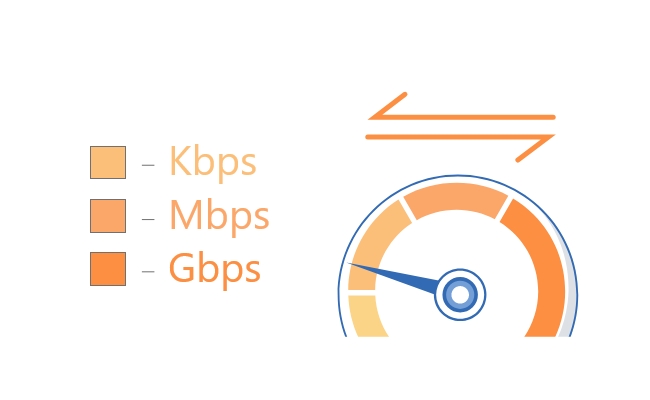
When we talk about internet speed, we are measuring bandwidth. Bandwidth is the maximum amount of data that can be transmitted over your internet connection in a given amount of time. Kbps is the baseline unit for this. Even though most modern connections are measured in Mbps (Megabits per second) or Gbps (Gigabits per second), the underlying math starts with the kilobit. One Megabit is equal to 1,000 kilobits. So, if you have a 10 Mbps connection, you essentially have a 10,000 kbps connection.
Your internet speed isn’t just one single number; it fluctuates. The kbps rate you see on a speed test is a snapshot of how much data your device can pull from a server at that exact moment. Factors like distance from the router, network congestion (how many neighbors are online), and the quality of your cables all affect this number. In rural areas or places with older infrastructure, internet speeds might still be sold or measured strictly in kilobits because the lines physically cannot handle megabit speeds.
Furthermore, different online activities require different speeds. Sending a simple text email might only require a burst of speed, consuming very few kilobits. However, hopping on a Zoom call requires a constant, steady stream of data, often demanding hundreds or thousands of kbps continuously. If your connection drops below the required threshold, you experience lag, robotic voices, or pixelated video. This is simply your connection failing to supply enough bits per second to recreate the video and audio in real-time on your screen.
The Evolution from Dial-Up to Fiber Optics
The journey of internet speed is a fascinating history lesson. In the 1990s, the standard speed was 56 kbps via dial-up. This speed was barely enough to load text and small, grainy images. Downloading a single song could take 20 to 30 minutes. The limitations of this speed shaped the early internet; websites had to be very simple because users just didn’t have the bandwidth to load complex graphics or videos. It was a text-heavy world because that was all the “pipes” could handle.
Then came DSL and Cable internet, which pushed us into the “broadband” era. Speeds jumped from 56 kbps to roughly 1,000 kbps (1 Mbps) and eventually much higher. Suddenly, websites could have background images, music, and eventually video. This shift wasn’t just about waiting less; it changed what the internet could be used for. We went from reading static pages to interacting with dynamic content. Streaming services like YouTube and Netflix would have been impossible in the kbps era of dial-up.
Today, with fiber optics, we are seeing speeds of 1,000,000 kbps (1 Gbps) and beyond. However, understanding the base unit is still important because many background processes and low-data devices (like smart home sensors or simple GPS trackers) still operate and communicate using small amounts of data measured in kilobits. The history of the internet is essentially a race to increase the kbps number as high as possible, removing barriers to communication and entertainment.
Kbps and Audio Quality: The MP3 Connection
While internet speeds have largely moved to Mbps, kbps remains the king of audio quality measurement. When you listen to digital music on Spotify, Apple Music, or MP3 files, the quality is determined by the bitrate. The bitrate tells you how much data is used to represent each second of audio. A higher bitrate means less compression and better sound quality, but it also means a larger file size.
Standard audio quality usually starts around 128 kbps. At this level, the music sounds okay to the average listener, but audiophiles will notice that some of the high notes (treble) and deep lows (bass) sound “muddy” or distorted. This is because compression algorithms remove data to save space, assuming you won’t hear the missing parts. As you move up to 192 kbps or 320 kbps, less data is thrown away. The sound becomes crisper, clearer, and more dynamic. It sounds closer to the original studio recording.
Streaming services often let you choose your audio quality based on your data plan. If you are on mobile data, you might want to stream at 96 kbps or 128 kbps to save data. But if you are on Wi-Fi, you can switch to “High” or “Very High” quality, which often streams at 320 kbps. Understanding this trade-off allows you to control your data usage without sacrificing your enjoyment of the music when you have the bandwidth to spare.
What Is the Ideal Bitrate for Music?
Choosing the right bitrate is a balancing act between storage space (or data usage) and listening pleasure. For spoken word content like podcasts or audiobooks, 64 kbps to 96 kbps is usually perfectly fine. Human speech doesn’t have the complex range of frequencies that a symphony orchestra does, so you don’t need as much data to make it sound clear. Using a lower bitrate here saves massive amounts of space on your phone, allowing you to download hundreds of hours of podcasts.
For music, the standard “good” quality is widely considered to be 192 kbps. This is the sweet spot where most people cannot distinguish the compressed file from a CD (which has a much higher bitrate). It provides good clarity for rock, pop, and electronic music. However, for classical music, jazz, or tracks with very subtle details, you might want to push for 320 kbps. At 320 kbps, you are at the upper limit of the MP3 format’s quality capabilities.
If you go beyond 320 kbps, you enter the realm of “lossless” audio (like FLAC or ALAC files), which can range from 700 to 1400 kbps or higher. While technically superior, these files are huge. For casual listening on standard earbuds or car speakers, 320 kbps is more than enough. Unless you have high-end headphones and a quiet room, you likely won’t hear the difference between 320 kbps and lossless audio, making the higher storage cost unnecessary for most users.
Kbps vs. Mbps vs. Gbps: A Comparison Table
It can be hard to visualize the difference between these units without seeing the numbers side-by-side. As we mentioned, the jump between each tier is a factor of 1,000. This scaling is crucial for understanding modern technology specifications. When you buy a router, sign up for an internet plan, or buy a hard drive, you will see these acronyms thrown around constantly.
Here is a simple breakdown to help you visualize the hierarchy of data speeds.
|
Unit |
Full Name |
Value in Kbps |
Common Use Case |
|---|---|---|---|
|
kbps |
Kilobits per second |
1 |
Low-quality audio, basic text emails, old dial-up internet |
|
Mbps |
Megabits per second |
1,000 |
Streaming HD video, online gaming, standard Wi-Fi |
|
Gbps |
Gigabits per second |
1,000,000 |
Fiber optic internet, large data centers, 4K video streaming |
As you can see, a Gigabit connection is one million times faster than a single kilobit connection. This exponential growth explains why we can now stream 4K movies in seconds, whereas downloading a single low-quality image used to take minutes. As technology advances, we may eventually see Tbps (Terabits per second) become common, which would be 1,000,000,000 kbps!
When Should You Worry About Low Numbers?
You generally only need to worry about kbps numbers being too low in specific situations. One is if you are in a location with very poor reception. If your phone drops from 4G or 5G down to “E” (Edge) or 3G, your speed might plummet into the kilobit range. Suddenly, apps stop refreshing, and maps won’t load. This is a stark reminder of how dependent modern apps are on Mbps speeds; they simply break when throttled down to kbps.
Another scenario is live streaming. If you are a gamer or content creator streaming to Twitch or YouTube, your “upload speed” is critical. While your download speed might be fast, your upload speed is often much slower. If your upload speed drops below roughly 3000-6000 kbps, your stream will look blocky or disconnect entirely. Streaming software specifically asks you to set a bitrate in kbps. Setting this number too high for your connection to handle will cause dropped frames, while setting it too low makes your video look blurry.
Lastly, consider security cameras. Many Wi-Fi cameras upload video to the cloud. If you have four cameras and each requires 2000 kbps to upload clear video, you need an upload speed of at least 8 Mbps just for your cameras. If your internet plan only supports 5 Mbps upload, your cameras will struggle, or they will slow down the rest of your network. In these cases, every kilobit counts.
Video Streaming and Bitrates
Just like audio, video quality is heavily dependent on bitrates measured in kbps or Mbps. When you watch Netflix or YouTube, the platform analyzes your internet connection speed. If you have a fast connection, it sends you a video file with a high bitrate. This file contains lots of data describing the colors, movements, and details of the picture. The result is a sharp, crisp image.
However, if your connection is slow, the service sends a lower bitrate version. This version has less data. To make the video file smaller, the compression algorithm groups pixels together, resulting in “blocking” or “artifacting”—that look where the video gets square and fuzzy. Standard Definition (SD) video typically requires about 3,000 kbps (3 Mbps). High Definition (HD) usually needs 5,000 to 8,000 kbps.
If you want to watch in 4K Ultra HD, the requirements jump significantly, often needing 25,000 kbps (25 Mbps) or more. This is why 4K streaming is impossible on slower DSL connections; the “pipe” just isn’t wide enough to fit 25,000 kilobits of data every single second. Understanding this helps you troubleshoot buffering issues—often, simply lowering the video quality (and thus the bitrate) will fix the problem instantly.
How Compression Works
Video compression is a miracle of modern math. Raw video footage is absolutely massive—far too big to stream over the internet. A raw video might require hundreds of thousands of kbps. To fix this, we use “codecs” (like H.264 or HEVC). These codecs look at the video and find ways to save space.
For example, if a scene shows a newscaster sitting still against a blue background, the codec realizes the blue background doesn’t change for 10 seconds. Instead of sending the data for “blue pixel” millions of times, it just says “keep these pixels blue for 10 seconds.” This drastically reduces the amount of data needed.
However, in scenes with lots of motion—like a football game, an action movie explosion, or confetti falling—every pixel is changing every split second. The codec can’t use its shortcuts. This causes the bitrate to spike. If your internet connection is capped at a low kbps, these high-action scenes are where you will see the quality drop or the video pause to buffer. The connection is choked by the sudden demand for more data.
Understanding Upload vs. Download Speeds
Most home internet connections are “asymmetric.” This means your download speed (data coming to you) is much faster than your upload speed (data going from you). You might have 100,000 kbps download, but only 10,000 kbps upload. This design assumes that most people consume content rather than create it.
We mostly download webpages, movies, and songs. We rarely upload massive files, except perhaps when backing up photos or posting a video. However, the rise of Zoom calls and working from home has made upload speed much more important. When you are on a video call, you are uploading your video feed to the internet in real-time.
If your upload speed is hovering around 500 or 600 kbps, your video will likely look terrible to the people on the other end of the call. They might hear you fine, but you will look like a blur. For a decent quality HD video call, you generally want an upload speed of at least 3,000 kbps. Knowing your upload capabilities helps you decide if you can turn your camera on during that important meeting or if you should stick to audio-only.
Testing Your Connection
You can easily check your speeds using online speed test tools. When you run a test, pay attention to both the download and upload numbers. Many tests display results in Mbps. To convert this to kbps, simply multiply the number by 1,000.
- Example: A result of 45.2 Mbps = 45,200 kbps.
Why do the conversion? Because sometimes router settings or specific software (like OBS for streaming) ask you to input limits in kilobits. If you input “45” thinking it means Mbps, you will be throttling your connection to a crawl (45 kbps is slower than dial-up!). Always double-check the unit of measurement requested by your software.
Regularly testing your speed can also help you verify if you are getting what you pay for. If your ISP promised 50 Mbps (50,000 kbps) but you are consistently only getting 20,000 kbps, there may be an issue with your modem, or the network might be congested. It gives you the information you need to call customer support and ask for a fix.
The Role of Ping and Latency
Speed isn’t just about how much data moves (throughput); it’s also about how fast it gets there (latency). While throughput is measured in kbps, latency is measured in milliseconds (ms). Latency, often called “ping,” is the time it takes for a single packet of data to travel from your computer to a server and back.
You can have a huge connection speed—say, 500,000 kbps—but if your ping is high (over 100ms), your internet will feel sluggish. When you click a link, there will be a noticeable pause before anything happens. In online gaming, this is the difference between winning and losing. You might have the bandwidth to download the game quickly, but high latency makes the gameplay choppy.
Interestingly, if your connection is completely saturated—meaning you are using all available kbps for a download—your latency will skyrocket. This is called “bufferbloat.” Imagine a traffic jam; the highway is full of cars (data). Even if the highway is wide, the cars move slowly because there is too much traffic. Managing your bandwidth usage ensures that your latency stays low, keeping your connection snappy and responsive.
Satellite Internet Challenges
Satellite internet is a prime example of the battle between speed and latency. Traditional satellite internet often offered decent download speeds, sometimes reaching 25,000 kbps. However, the data has to travel all the way to space and back. This physics problem creates massive latency, often 600ms or more.
This makes activities like online gaming or voice calls nearly impossible, despite having a decent kbps rating. The delay is just too long for real-time interaction. Newer satellite technologies, like Starlink, use low-earth orbit satellites to solve this. By bringing the satellites closer to Earth, they reduce the travel time, offering both high speeds (100,000+ kbps) and low latency.
This distinction is vital for rural users. When shopping for internet, don’t just look at the advertised download speed. Ask about the latency. A connection with 10,000 kbps and low latency is often much more usable for daily tasks like browsing and calling than a connection with 50,000 kbps but huge delays.
Data Caps and Throttling
Many internet plans, especially mobile data plans, come with “data caps.” This is a limit on the total amount of data you can use in a month. Once you hit that cap, your ISP might cut you off, or more commonly, “throttle” your speed.
Throttling means they artificially slow down your connection. You might go from a blazing fast 4G LTE speed down to 128 kbps or 256 kbps. This is known as “2G speeds.” At 128 kbps, your smartphone becomes almost useless for modern apps. Instagram photos won’t load, Spotify will buffer constantly, and forget about YouTube. You are essentially thrown back into the internet of the early 2000s.
This highlights how accustomed we have become to high speeds. The modern web is built on the assumption of broadband. Web developers create sites with large images and scripts because they assume users have Mbps connections. When you are throttled to low kbps, you realize how “heavy” the modern internet really is. It is a frustrating experience that emphasizes the value of unlimited data plans or monitoring your usage carefully.
Managing Your Data Usage
If you have a limited data plan, understanding kbps can help you save money. Since bitrates determine file size, lowering the quality of your media reduces data consumption.
- Audio: Switching Spotify from “Very High” (320 kbps) to “Normal” (96 kbps) reduces data usage by roughly two-thirds.
- Video: Watching YouTube in 480p instead of 1080p can save gigabytes of data over a few hours.
Most apps have settings specifically for this. Look for “Data Saver” modes. These modes essentially force the app to use lower bitrates. You are voluntarily choosing a lower kbps stream to ensure you don’t hit your monthly cap. It’s a smart trade-off: slightly lower quality in exchange for not running out of data halfway through the month.
The Future of Connectivity
As we move forward, the conversation is shifting away from “do I have enough speed?” to “what can I do with all this speed?” With 5G and fiber optics, typical home speeds are reaching levels where kbps is almost too small a unit to use conveniently. We are talking about hundreds of millions of kilobits.
However, the Internet of Things (IoT) ensures kbps stays relevant. Smart light bulbs, thermostats, and door sensors don’t need gigabits of data. They send tiny packets of information—”lights on,” “temperature 72,” “door open.” These devices operate efficiently in the low kilobit range. As our homes fill with hundreds of these smart devices, managing the network traffic of these tiny data streams becomes important.
Furthermore, in developing nations or remote areas, technology optimized for low kbps is crucial for bringing the next billion people online. “Lite” versions of apps like Facebook Lite or YouTube Go are engineered specifically to function smoothly on slow, unstable connections that average only a few dozen kilobits per second. This inclusivity is a major focus for tech giants.
Tech Innovation
Looking ahead, advancements in compression technology will make our current kbps go further. New codecs are being developed that can deliver 4K quality video at half the bitrate of current standards. This means you could stream high-quality video even on a slower connection.
This is vital for the future of Virtual Reality (VR) and Augmented Reality (AR). These technologies require massive amounts of data to render 360-degree worlds in real-time. Current connections struggle to keep up. By making the data streams more efficient—getting more quality out of every single kilobit—we pave the way for these immersive technologies to become mainstream.
The humble kilobit will always be the fundamental building block. Whether we are counting them by the thousands, millions, or billions, understanding the flow of bits is the key to understanding the digital future.
Troubleshooting Slow Speeds
If you feel like your internet is dragging, there are steps you can take before calling your ISP. First, restart your router. It sounds like a cliché, but routers are tiny computers that can run out of memory or get buggy. A reboot clears the system and can often restore your full kbps potential.
Second, check for interference. Wi-Fi signals can be blocked by walls, metal objects, or even other electronic devices like microwaves. Moving your router to a central, open location can drastically improve signal strength and speed. If you are far from the router, your device might only be able to negotiate a slow connection speed, resulting in low throughput.
Third, scan for “bandwidth vampires.” These are devices on your network that are sucking up all the data. Is a game console downloading a massive update in the background? Is someone else in the house streaming 4K Netflix? If your total bandwidth is 20,000 kbps and one device is using 18,000, everything else will slow to a crawl.
Wired vs. Wireless
One of the best ways to guarantee you get your full speed is to use a wired Ethernet connection. Wi-Fi is convenient, but it is susceptible to interference and signal loss. An Ethernet cable creates a direct, shielded path for data.
On Wi-Fi, you might pay for 100 Mbps but only get 60 Mbps due to distance from the router. With a cable, you will almost always get roughly 100% of the speed entering your home. If you do heavy downloading, gaming, or 4K streaming, wiring up your stationary devices (like PCs, TVs, and consoles) relieves pressure on the Wi-Fi network, leaving more wireless bandwidth (more kbps) available for phones and tablets.
This simple change is often the most effective “upgrade” you can make to your home network without spending any extra money on a monthly plan.
Conclusion
Understanding kbps gives you a look “under the hood” of the internet. It demystifies why your video is buffering, why your music sounds crystal clear (or muddy), and why your Zoom call freezes when someone else starts downloading a game. It is the currency of the digital age—the rate at which we exchange information, entertainment, and communication.
While we often focus on the big numbers like Gigabits, the reality is that our digital experience is built on the efficient management of kilobits. Whether you are configuring a live stream, choosing a music quality setting, or shopping for a rural internet plan, this knowledge empowers you to make better choices. You stop being a passive user and become an informed consumer of technology.
So, the next time you see that little “kbps” label, you won’t just see random letters. You will see the flow of data that powers your modern life. For more insights into technology and digital trends, you can always explore resources like https://siliconvalleytime.co.uk/ to stay ahead of the curve.
Frequently Asked Questions (FAQ)
Q: Is 128 kbps good quality for music?
A: It is considered “standard” or “acceptable” quality. It’s fine for casual listening, but if you listen closely on good headphones, you might hear some distortion. 192 kbps or 320 kbps is recommended for better quality.
Q: How many kbps do I need for Netflix?
A: For Standard Definition (SD), you need about 3,000 kbps (3 Mbps). For High Definition (HD), you need at least 5,000 kbps (5 Mbps). For 4K Ultra HD, you need 25,000 kbps (25 Mbps) or more.
Q: What is the difference between kbps and KBps?
A: kbps (lowercase b) stands for kilobits per second, measuring speed. KBps (uppercase B) stands for Kilobytes per second, measuring data transfer size. There are 8 bits in 1 byte, so 8 kbps = 1 KBps.
Q: Why is my upload speed lower than my download speed?
A: Internet providers design home connections this way because most people download far more data (streaming, browsing) than they upload. Symmetrical connections (equal speeds) are usually more expensive business-class lines.
Q: Is 56 kbps still used?
A: Rarely for direct internet access, but some very old dial-up systems or specific industrial equipment might still communicate at these low speeds. However, for modern web browsing, it is effectively obsolete.