
Have you ever wondered what happens in the split second after you type a website address into your browser and hit Enter? It feels like magic, but it’s actually a brilliant process working behind the scenes. A key player in this process is the DNS lookup, which acts as the internet’s digital phonebook. It’s the system that translates human-friendly website names, like google.com, into computer-friendly IP addresses.
Understanding the DNS lookup process is like learning the secret language of the internet. It helps explain why some websites load instantly while others take a moment, and it’s a fundamental concept for anyone interested in how the web works. This guide will walk you through everything you need to know, from the basic steps to advanced tools and troubleshooting.
Key Takeaways
- What is DNS?: The Domain Name System (DNS) is the internet’s directory, translating domain names (like
example.com) into numerical IP addresses (like93.184.216.34). - The Lookup Process: A DNS lookup is the step-by-step process of finding the correct IP address for a domain name. This involves your computer querying a series of specialized servers.
- Why It Matters: Without a successful DNS lookup, your browser wouldn’t know which server to connect to, and you wouldn’t be able to access any websites. It’s essential for browsing, emailing, and nearly all internet activity.
- Tools and Troubleshooting: Various tools can help you perform a manual DNS lookup to diagnose connection issues, check server configurations, and understand your network’s performance.
What Exactly is the Domain Name System (DNS)?
Before we dive deep into the DNS lookup itself, let’s get friendly with its foundation: the Domain Name System, or DNS. Imagine trying to remember the phone number of every person you know. It would be nearly impossible! Instead, you save their numbers in your phone’s contacts under their names. When you want to call someone, you just tap their name, and your phone dials the correct number.
The DNS works in the exact same way for the internet. Computers on the internet find each other using unique numerical labels called IP addresses. An example of an IP address is 172.217.14.228. Trying to remember a long string of numbers for every website you visit would be a nightmare. This is where domain names, like google.com, come in. They are easy-to-remember aliases for those numerical IP addresses.
The DNS is the global, decentralized system that keeps a record of which domain name maps to which IP address. It’s not one giant database in a single location but a vast network of servers distributed all over the world. This distribution makes the system incredibly resilient and fast. When you perform a DNS lookup, you are essentially asking this giant, distributed phonebook to find the right number (IP address) for the name (domain) you want to reach.
The Step-by-Step DNS Lookup Process Explained
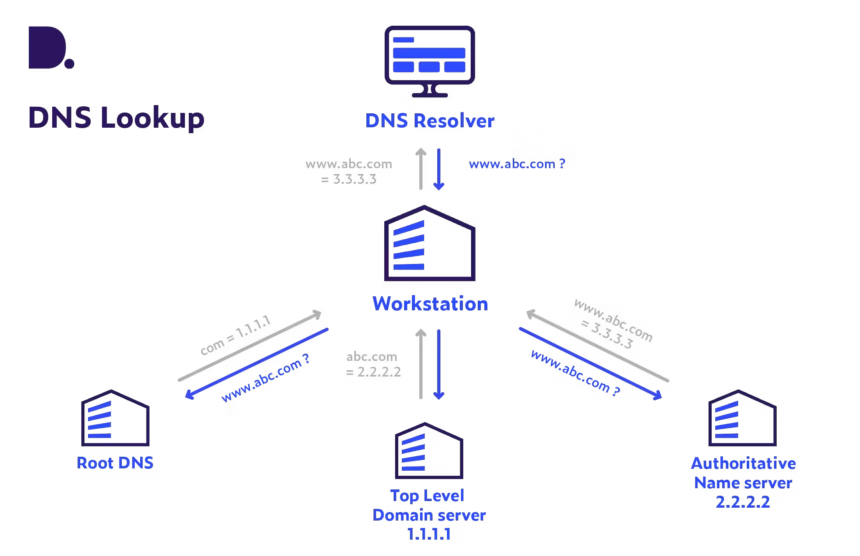
The journey from typing a domain name to seeing a website load is a rapid, multi-step adventure. While it all happens in milliseconds, the DNS lookup process follows a logical path to find the information it needs. Let’s break down the typical journey of a recursive DNS lookup.
Step 1: The User’s Request and Browser Cache
It all starts with you. You type https://siliconvalleytime.co.uk/ into your browser and press Enter. The first place your computer looks for the corresponding IP address is in its own memory. Your browser maintains a small DNS cache, which is a temporary storage of recently visited websites and their IP addresses. If you’ve visited the site recently, the IP address might already be stored here. If it is, the lookup process ends, and your browser connects directly to the server.
Step 2: The Operating System Cache
If the browser cache comes up empty, the request moves to the next level: your computer’s operating system (OS). Your OS also keeps a DNS cache. This is another quick check to see if the information is stored locally. If the IP address is found in the OS cache, the process stops here, and your browser gets the information it needs to proceed. A successful local lookup is the fastest way to resolve a domain.
Step 3: The Recursive DNS Server
If the IP address isn’t found on your local machine, the query is sent out onto the network. The first stop is a special server known as a recursive DNS server (or DNS resolver). This server is usually operated by your Internet Service Provider (ISP), like Comcast, AT&T, or Verizon. Its job is to do all the hard work of finding the IP address on your behalf. The recursive server also has its own cache. If another user on the same ISP network recently requested the same domain, the IP will be cached, and the server will immediately send it back to you.
Step 4: Querying the Root Name Servers
If the recursive server doesn’t have the answer in its cache, it begins the real search. Its first question goes to one of the 13 root name servers that form the backbone of the internet. These root servers don’t know the IP address of siliconvalleytime.co.uk directly. However, they know who to ask next. They look at the last part of the domain—the Top-Level Domain (TLD), which in this case is .co.uk—and direct the recursive server to the TLD name server responsible for all .co.uk domains.
Step 5: Querying the TLD Name Servers
Following the root server’s direction, the recursive server now contacts the TLD name server for .co.uk. This server manages information for all domains ending in that extension. The TLD server doesn’t have the final IP address either, but it knows the next step. It looks at the domain siliconvalleytime and points the recursive server to the authoritative name servers for that specific domain.
Step 6: Querying the Authoritative Name Server
This is the final step of the search. The recursive server queries the authoritative name server for siliconvalleytime.co.uk. An authoritative name server holds the official, final records for a domain. It’s the ultimate source of truth. This server knows the exact IP address for the domain and sends this information back to the recursive DNS server.
Step 7: Returning the IP Address
The recursive server now has the IP address. It stores this information in its cache for a specific period (known as Time to Live, or TTL) so it can answer future requests for the same domain instantly. Finally, it sends the IP address back to your computer. Your browser can now establish a direct connection with the web server at that IP address and begin loading the website’s content. This entire DNS lookup sequence happens in the blink of an eye.
Different Types of DNS Lookups
Not all lookups are the same. The path a query takes can vary based on the information needed and the servers involved. Understanding the different types helps clarify how the system works so efficiently.
Recursive vs. Iterative Queries
The two main types of queries in a DNS lookup are recursive and iterative.
- Recursive Query: This is the “do it for me” request. When your computer sends a query to a recursive DNS server (like your ISP’s), it expects a complete answer—either the final IP address or an error message saying it can’t be found. The recursive server takes on the full responsibility of finding the answer, querying other servers as needed. This is the type of query your computer initiates.
- Iterative Query: This is the “best guess” or “referral” request. When the recursive server queries the root, TLD, and authoritative name servers, it uses iterative queries. In an iterative query, the server being queried doesn’t have to provide the final answer. Instead, it provides the best information it has—a referral to the next server in the chain that is more likely to have the answer. The recursive server then has to “iterate” and make another query to the referred server. This process continues until it gets the final answer from the authoritative server.
This division of labor is what makes DNS so scalable and efficient. Your device makes one simple request, and a dedicated resolver handles all the complex steps.
Why is DNS Lookup So Important?
The DNS lookup process is one of the unsung heroes of the internet. Without it, the web as we know it simply couldn’t exist. Its importance touches nearly every aspect of our online experience.
First and foremost, it provides human-friendly navigation. IP addresses, especially in their modern IPv6 format, are long and complex strings of characters (e.g., 2001:0db8:85a3:0000:0000:8a2e:0370:7334). Imagine having to type that every time you wanted to watch a video or check social media. The DNS lookup system allows us to use memorable domain names, making the internet accessible and easy to use for everyone, not just technical experts.
Second, it provides reliability and redundancy. The DNS is a decentralized system, meaning its records are spread across thousands of servers worldwide. If one server goes down, traffic is automatically routed to another. This structure prevents a single point of failure from taking down the entire internet. The lookup process is designed to find alternative paths, ensuring you can still connect to your favorite sites even if part of the network is experiencing issues.
Finally, DNS plays a critical role in speed and performance. Through caching at multiple levels—browser, OS, and recursive resolvers—the system avoids repeating the full, multi-step lookup process every single time. This drastically reduces latency and makes web pages load faster. Efficient DNS management is also a key factor in how quickly services can be delivered through Content Delivery Networks (CDNs), which route users to the geographically closest server for faster content access.
Common DNS Record Types
When a DNS lookup is performed, the query isn’t just for an IP address. The DNS can store many different types of information in what are called “records.” An authoritative name server holds a collection of these records for its domain.
Here are some of the most common record types you’ll encounter:
|
Record Type |
Full Name |
Purpose |
|---|---|---|
|
A |
Address Record |
Maps a domain name to an IPv4 address. This is the most common record type. |
|
AAAA |
IPv6 Address Record |
Maps a domain name to an IPv6 address. It’s the IPv6 equivalent of an A record. |
|
CNAME |
Canonical Name Record |
Forwards one domain or subdomain to another domain. It acts as an alias. |
|
MX |
Mail Exchange Record |
Directs email to a mail server. It specifies which servers are responsible for accepting emails. |
|
NS |
Name Server Record |
Specifies the authoritative name servers for a domain. |
|
TXT |
Text Record |
Allows an administrator to store human-readable text in the DNS. Used for verification and security. |
|
PTR |
Pointer Record |
Performs a reverse DNS lookup, mapping an IP address back to a domain name. |
|
SOA |
Start of Authority |
Contains important administrative information about the domain, like the primary name server. |
For example, when your browser performs a DNS lookup for a website, it’s requesting the A or AAAA record. When your email client sends a message, it performs a lookup for the MX record of the recipient’s domain.
How to Perform a DNS Lookup Manually
While the DNS lookup process is usually automatic, there are times when you might want to perform one manually. This is useful for troubleshooting network problems, checking if a domain’s DNS changes have propagated, or simply satisfying your curiosity. Several command-line tools available on Windows, macOS, and Linux make this easy.
Using nslookup
The nslookup (name server lookup) command is one of the most widely known tools. It’s available on all major operating systems.
To perform a basic lookup:
- Open your command-line interface (Command Prompt on Windows, Terminal on macOS/Linux).
- Type
nslookup example.com(replaceexample.comwith the domain you want to check). - Press Enter.
The output will show you the recursive DNS server that handled your request and the A record (IP address) for the domain you queried. You can also use it to query for specific record types, like nslookup -type=MX google.com to find Google’s mail servers.
Using dig
The dig (domain information groper) command is a more powerful and flexible tool, favored by many network administrators. It’s standard on macOS and Linux and can be installed on Windows.
To perform a basic lookup with dig:
- Open your Terminal.
- Type
dig example.com. - Press Enter.
dig provides a much more detailed output, including the query time, the server that answered, and the full DNS record with its TTL. You can also use it to trace the entire iterative query path with the command dig +trace example.com. This is a fantastic way to see the step-by-step DNS lookup process in action.
Using Online DNS Lookup Tools
If you’re not comfortable with the command line, numerous websites offer free DNS lookup services. Tools like Google Public DNS, WhatsMyDNS.net, and DNSChecker.org provide easy-to-use interfaces. You just type in a domain name, select the record type you want to check, and the website will query it for you from multiple locations around the world. This is especially useful for checking DNS propagation—seeing if your new DNS records are visible globally.
Troubleshooting Common DNS Lookup Issues
Sometimes, the DNS lookup process fails. This is often the cause behind “This site can’t be reached” or “Server not found” errors in your browser. Here are a few common issues and how to troubleshoot them.
DNS Server Not Responding
This error means your device couldn’t get a response from your designated recursive DNS server.
- Solution: The classic “turn it off and on again” works wonders. Restarting your router can often resolve temporary glitches with your ISP’s DNS server. You can also try clearing your local DNS cache. On Windows, open Command Prompt as an administrator and run
ipconfig /flushdns. On macOS, open Terminal and runsudo dscacheutil -flushcache; sudo killall -HUP mDNSResponder.
Incorrect DNS Configuration
Your device might be pointing to the wrong DNS server, or the server itself might have incorrect information.
- Solution: You can manually change your device’s DNS settings to use a public DNS provider instead of your ISP’s default. Public DNS services like Google Public DNS (
8.8.8.8and8.8.4.4) or Cloudflare DNS (1.1.1.1and1.0.0.1) are often faster and more reliable. This is a great troubleshooting step to see if the issue lies with your ISP’s DNS.
DNS Propagation Delays
When a website owner changes their DNS records (for example, moving to a new web host), it can take time for those changes to become visible everywhere. This period, which can last up to 48 hours, is called DNS propagation.
- Solution: Patience is key here. However, you can use an online DNS lookup tool to check the status of propagation from different parts of the world. Clearing your local DNS cache can also sometimes help you pick up the new records faster.
DNS Security: What is DNSSEC?
Because the DNS lookup process is so central to internet function, it has become a target for malicious attacks. One common attack is “DNS spoofing” or “cache poisoning,” where an attacker intercepts a DNS query and feeds back a fraudulent IP address. This can redirect an unsuspecting user from their online banking site to a fake phishing site that looks identical.
To combat this, a security extension called DNSSEC (Domain Name System Security Extensions) was developed. DNSSEC adds a layer of authentication to the DNS. It uses digital signatures to verify that the DNS records received by a user are authentic and have not been tampered with during transit.
When you perform a DNS lookup for a domain that is protected by DNSSEC, the recursive resolver can check the digital signature associated with the record. If the signature is valid, the resolver knows the information is legitimate. If it’s invalid or missing, it knows the data may have been compromised and can block the request, protecting the user. DNSSEC adds a crucial layer of trust to the internet’s phonebook.
The Future of DNS: Privacy and Performance
The world of DNS is constantly evolving to become more secure, private, and efficient. Two major developments shaping its future are DNS over HTTPS (DoH) and DNS over TLS (DoT).
Traditionally, DNS lookup queries are sent in plain text. This means anyone on the network path—your ISP, for example—can see which websites you are trying to visit. DoH and DoT solve this privacy problem by encrypting your DNS queries.
- DNS over TLS (DoT) wraps DNS queries in a secure TLS encryption layer, the same technology that secures HTTPS websites.
- DNS over HTTPS (DoH) goes a step further by sending DNS queries disguised as regular HTTPS traffic. This makes it very difficult for network observers to even identify and block DNS traffic.
Both technologies significantly improve user privacy by preventing eavesdropping on browsing habits. They can also enhance security by preventing redirection attacks. Many modern browsers and operating systems are now starting to support and enable DoH and DoT by default, marking a major shift toward a more private and secure internet for everyone.
Frequently Asked Questions (FAQ)
Q1: What is a reverse DNS lookup?
A reverse DNS lookup is the opposite of a standard forward lookup. Instead of finding the IP address for a domain name, it finds the domain name associated with an IP address. This is done using a PTR record. It’s often used by mail servers to verify that an incoming email is from a legitimate source and not a spam bot.
Q2: How long does a DNS lookup take?
A DNS lookup is incredibly fast. If the record is cached locally on your browser or OS, it can take less than a millisecond. If the query has to go to a recursive server that also has it cached, it might take a few milliseconds. A full lookup that goes all the way to the authoritative server can take anywhere from 20 to 120 milliseconds, which is still faster than the blink of an eye.
Q3: Can I choose my own DNS server?
Yes, absolutely. By default, your devices use the DNS server provided by your ISP. However, you can manually change this in your network settings on your computer, router, or smartphone. Popular public DNS providers include Cloudflare (1.1.1.1), Google Public DNS (8.8.8.8), and OpenDNS. Many people switch for better speed, reliability, or enhanced security features like malware blocking.
Q4: What is a DNS cache?
A DNS cache is a temporary database that stores the results of recent DNS lookups. Caches exist at multiple levels: in your web browser, in your computer’s operating system, and on recursive DNS servers. Caching makes the internet faster by allowing your device to reuse a known IP address without having to perform a full DNS lookup every time you visit a site.
Q5: Is a DNS lookup safe?
Standard DNS lookup queries are sent in plain text, which means they are not private. Your ISP can see every website you query. For enhanced safety and privacy, you can use services that support DNS over HTTPS (DoH) or DNS over TLS (DoT), which encrypt your DNS traffic. Additionally, DNSSEC helps ensure the responses you get are authentic and haven’t been tampered with.
Conclusion
The DNS lookup is a fundamental process that makes the internet user-friendly and efficient. It’s the invisible yet vital mechanism that connects the domain names we remember to the IP addresses that computers need. From the initial query in your browser to the final answer from an authoritative server, this lightning-fast sequence of requests and referrals happens billions of times a day, seamlessly connecting us to the digital world.
By understanding how a DNS lookup works, you gain insight into the core of internet architecture. You’re better equipped to troubleshoot connectivity issues, enhance your online privacy with secure DNS options, and appreciate the intricate design that makes browsing the web so effortless. The next time you type a web address and a page appears, you’ll know it’s not magic—it’s the elegant and powerful work of the Domain Name System.