







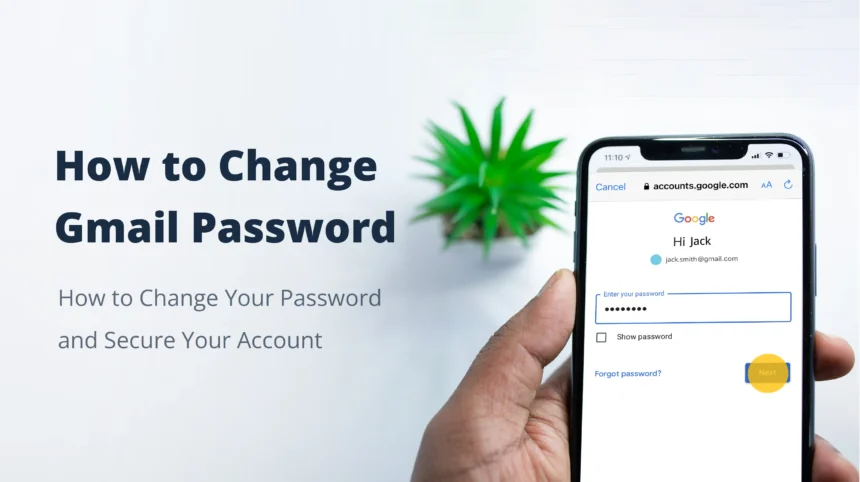

Keeping your digital life secure is more important than ever. Your Gmail account is often the central hub for your online identity, connecting everything from social media to banking. If you suspect your account has been compromised, or if you simply want to follow good security practices, learning how to change Gmail password is a fundamental skill. This guide will walk you through every step of the process, offer tips for creating a strong password, and provide additional strategies to keep your Google Account secure. We’ll cover everything from the basic steps on a computer to changing your password on mobile devices, ensuring you have all the information you need.
Key Takeaways
- Changing your Gmail password regularly is a crucial step in protecting your personal information.
- The process can be completed on a desktop computer through your Google Account settings or on your mobile device via the Gmail app or browser.
- Creating a strong, unique password that combines letters, numbers, and symbols is essential for robust security.
- Enabling two-factor authentication (2FA) adds a vital extra layer of protection to your account.
- If you forget your password, Google provides a straightforward account recovery process to help you regain access.
Why You Should Regularly Change Your Gmail Password
Your email account is a treasure trove of personal information. It contains private conversations, financial statements, login details for other websites, and personal photos. If a cybercriminal gains access to your Gmail, they could potentially access many other areas of your digital life. Regularly updating your password is a proactive measure that significantly reduces the risk of unauthorized access.
Security experts recommend changing your passwords at least every 90 days. This practice helps to mitigate the damage from potential data breaches that you may not even be aware of. If a service you use is compromised and your login credentials are leaked, having a new password for your Gmail account means that leaked information is already outdated. Taking a few minutes to learn how to change Gmail password can save you from identity theft, financial loss, and significant personal stress. It’s a small action with a huge impact on your overall digital security.
Step-by-Step Guide: How to Change Gmail Password on a Desktop
Changing your password on a desktop computer or laptop is the most common method. Google’s interface is designed to be user-friendly, making the process simple. Follow these detailed steps to update your credentials and secure your account.
- Open Your Google Account: Start by opening your web browser (like Chrome, Firefox, or Safari) and navigating to myaccount.google.com.
- Sign In: If you aren’t already signed in, you will be prompted to enter your current Gmail address and password.
- Navigate to the Security Tab: On the left-hand side of the Google Account dashboard, you will see a navigation menu. Click on the “Security” option. This is your central hub for all security-related settings for your Google Account.
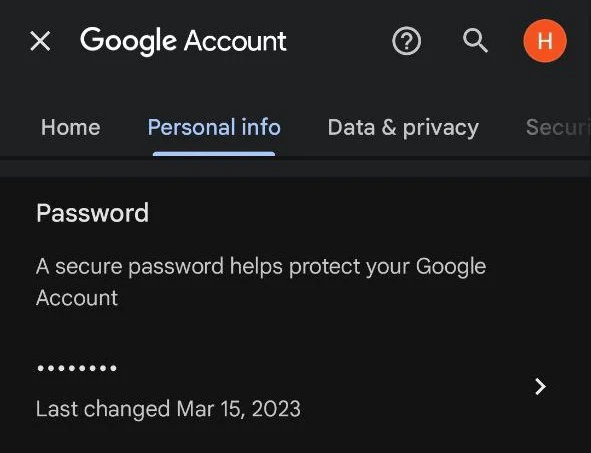
- Find the Password Section: Scroll down the Security page until you see the section labeled “Signing in to Google.” The first option in this box will be “Password.” It will also show the date you last changed it. Click on this “Password” option.
- Verify Your Identity: For your protection, Google will ask you to re-enter your current password. This is to confirm that the person attempting to change the password is you. Enter your password and click “Next.”
- Enter Your New Password: You will now be on the page where you can set your new password. You’ll see two fields: “New password” and “Confirm new password.” Type your chosen new password into the first field. Make sure it’s a strong one (more on this later).
- Confirm the New Password: Carefully re-type the exact same password into the second field. This step ensures you didn’t make any typos. If the two fields don’t match, you won’t be able to proceed.
- Save Your Changes: Once you’ve entered and confirmed your new password, click the “Change Password” button.
That’s it! Your Gmail password has been successfully changed. You will be signed out of your account on most devices, and you will need to use your new password to sign back in.
How to Change Gmail Password on Android Devices
For the millions of users who primarily access their email on an Android phone or tablet, changing your password is just as easy. You can do this directly from your device’s settings.
Using the Settings Menu
The most direct way on an Android device is through the main Settings app, as your Google Account is deeply integrated into the operating system.
- Open your phone’s Settings app (the gear icon).
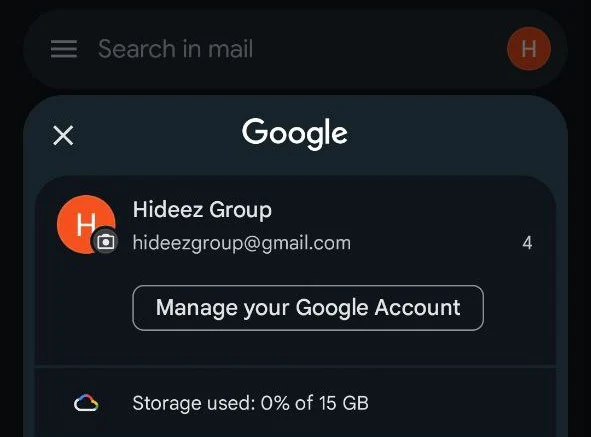
- Scroll down and tap on Google. This will take you to your Google Account management screen.
- Tap on the “Manage your Google Account” button.
- Swipe through the tabs at the top of the screen (Home, Personal info, etc.) and select the Security tab.
- Under the “Signing in to Google” section, tap on Password.
- You’ll be asked to verify your identity by entering your current password.
- On the next screen, enter your new password, then confirm it in the box below.
- Tap “Change Password” to finalize the process.
This process ensures that your primary account on your Android device is updated, which will then apply to all Google services you use, including Gmail, Google Drive, and Google Photos. Learning how to change Gmail password on your phone is a convenient way to stay secure on the go.
How to Change Gmail Password on iPhone and iPad
If you’re an Apple user, you can also manage your Gmail password directly from your iPhone or iPad. The process can be done through the Gmail app or by using the Safari web browser.
Using the Gmail App
The official Gmail app provides a direct link to your account settings, making it a convenient option.
- Open the Gmail app on your iPhone or iPad.
- Tap on your profile picture or initial in the top-right corner.
- A menu will appear. Tap on “Manage your Google Account.”
- This will open an in-app browser to your Google Account page. At the top, select the Security tab.
- Scroll down to the “Signing in to Google” section and tap on Password.
- Enter your current password to verify your identity.
- Type your desired new password into the “New password” field and then again in the “Confirm new password” field.
- Tap the “Change Password” button to save your new credentials.
After changing your password, you may be prompted to sign in again to the Gmail app and any other Google apps on your device. This method ensures your account remains protected across your Apple ecosystem.
What to Do If You’ve Forgotten Your Gmail Password
Forgetting a password is a common issue. Fortunately, Google has a robust and secure account recovery process. If you can’t remember your current password and need to set a new one, here’s what to do.
- Go to the Google Sign-in Page: Open a browser and navigate to the Gmail sign-in page.
- Enter Your Email Address: Type in your Gmail address and click “Next.”
- Click “Forgot password?”: On the password entry screen, click the “Forgot password?” link.
- Follow the Recovery Prompts: Google will now guide you through a series of steps to verify your identity. These steps vary depending on the recovery information you’ve previously set up. You may be asked to:
-
- Enter the last password you remember: Even if it’s not the correct one, it can help Google verify your identity.
- Get a verification code: A code can be sent to your recovery phone number (via text or call) or your recovery email address.
- Answer your security question: If you set one up in the past.
- Confirm access from a trusted device: You might receive a prompt on a phone or tablet where you are already signed in.
- Create a New Password: Once you have successfully verified your identity, Google will allow you to create a new password. Enter and confirm your new password, and you’ll regain access to your account.
This process highlights the importance of keeping your recovery information, like your phone number and a secondary email address, up to date in your Google Account settings.
Creating a Strong and Memorable Password
Knowing how to change Gmail password is only half the battle. The other half is creating a password that is difficult for others to guess but easy for you to remember. A weak password undermines all your security efforts.
Best Practices for Password Creation
|
Do’s |
Don’ts |
|---|---|
|
Use at least 12 characters |
Don’t use personal information (birthdays, names) |
|
Mix uppercase and lowercase letters |
Don’t use common words like “password” or “123456” |
|
Include numbers and symbols |
Don’t use sequential keyboard patterns (e.g., “qwerty”) |
|
Make it unique for each account |
Don’t reuse passwords across different websites |
A great technique is to create a passphrase. Think of a sentence that is easy for you to remember and use the first letter of each word, substituting some letters with numbers or symbols. For example, the sentence “My first dog was a Golden Retriever named Buddy!” could become Mf1dw@GRnB!. This results in a strong, complex password that is still tied to a memory. For more insights on digital trends, check out the resources at siliconvalleytime.co.uk.
The Importance of Two-Factor Authentication (2FA)
While a strong password is your first line of defense, two-factor authentication (2FA), which Google calls 2-Step Verification, is your essential backup. When 2FA is enabled, you need two things to sign in:
- Something you know: Your password.
- Something you have: Your phone, a security key, or a verification code.
This means that even if a criminal manages to steal your password, they still won’t be able to access your account without the second verification step. It’s one of the most effective ways to secure your online accounts.
How to Enable 2-Step Verification
- Go to your Google Account and navigate to the Security tab.
- Under “Signing in to Google,” click on 2-Step Verification.
- Click “Get Started” and follow the on-screen prompts.
- You will typically be asked to link your phone number. Google will send you a test code to confirm it works.
- Once set up, you will receive a code via text message or a prompt on your phone whenever you sign in from a new device.
Enabling 2FA is a critical step that complements the process of learning how to change Gmail password, providing a nearly impenetrable layer of security.
What to Do After You Change Your Password
Once you have successfully changed your Gmail password, there are a few additional steps you should take to ensure your account is fully secured and to minimize any disruption.
- Sign In on All Your Devices: You will be logged out of Gmail on your phone, tablet, laptop, and any other device. You’ll need to re-enter your new password on each one.
- Update Third-Party Apps: If you use any third-party email clients (like Microsoft Outlook or Apple Mail) or apps that use your Google login, you will need to update the password in their settings as well.
- Perform a Security Checkup: This is an excellent time to use Google’s Security Checkup tool. It’s a guided review of your security settings, connected devices, and third-party app access. You can find it at the top of the Security tab in your Google Account. This tool will help you identify and remove any suspicious activity or old devices you no longer use.
Frequently Asked Questions (FAQ)
Q1: How often should I change my Gmail password?
A: Security experts generally recommend changing your password every 90 days. However, you should change it immediately if you suspect any unauthorized activity or if you’ve been notified of a data breach on another site where you used the same password.
Q2: Will changing my Gmail password change my password for other Google services?
A: Yes. Your Gmail account is part of your overall Google Account. When you learn how to change Gmail password, you are actually changing the password for all connected Google services, including Google Drive, YouTube, Google Photos, and the Google Play Store.
Q3: What if I don’t have access to my recovery phone or email?
A: If you can’t access your recovery methods, the account recovery process becomes more difficult, but not always impossible. Google may ask you more detailed questions about your account usage to verify your identity. This is why it is critical to keep your recovery information up to date.
Q4: Will changing my password log me out everywhere?
A: Yes, for the most part. Changing your password will sign you out of your Google Account on nearly all devices and browsers. This is a security feature to ensure that anyone who had unauthorized access is immediately locked out.
Q5: Can I see which devices are logged into my account?
A: Absolutely. In your Google Account, go to the Security tab and scroll down to the “Your devices” section. Here, you can see a list of every device currently signed in to your account. You can—and should—sign out of any devices you don’t recognize or no longer use.
Conclusion: Take Control of Your Digital Security
Mastering how to change Gmail password is a simple yet powerful step toward safeguarding your digital life. Your email is the key to countless other accounts, and protecting it should be a top priority. By regularly updating your password, creating strong and unique credentials, and enabling 2-Step Verification, you build a formidable defense against cyber threats. The process is straightforward on any device, and Google provides all the tools you need to manage your account’s security effectively. Don’t wait for a security scare to take action; be proactive and make these practices a regular part of your digital routine. For further reading on the history and development of password security, you can explore detailed information on a resource like Wikipedia.



