







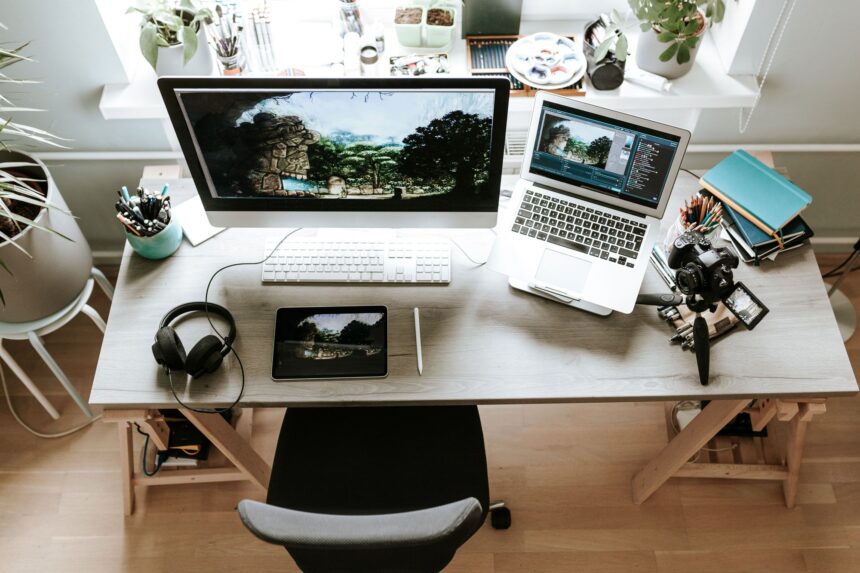

Creating a productive and comfortable workspace at home is more than just clearing a corner of your dining table. A well-planned remote work setup is the foundation for success, impacting everything from your focus and efficiency to your physical and mental well-being. Whether you’re new to working from home or looking to refine your existing space, this guide will walk you through every element you need to build an environment where you can truly thrive.
We will cover the essential hardware, the right software, and the crucial habits that transform any space into a professional powerhouse. From ergonomics and internet connectivity to security and maintaining a healthy work-life balance, consider this your complete blueprint for an ideal home office.
Key Takeaways
- Ergonomics is Non-Negotiable: Your chair, desk, and monitor placement are critical for long-term health. Prioritize an adjustable chair and position your screen at eye level to prevent strain.
- A Stable Connection is Essential: Reliable, high-speed internet is the backbone of any remote work setup. Consider a wired connection and a quality router for maximum stability.
- Define Your Workspace: A dedicated area for work, no matter how small, helps create a psychological boundary between your professional and personal life.
- Security is Your Responsibility: Protect company and personal data with a VPN, multi-factor authentication (MFA), and good digital hygiene practices.
- Optimize for Virtual Presence: Good lighting and clear audio are no longer optional. Invest in a decent webcam, microphone, and lighting to ensure you show up professionally.
- Wellness and Routine Matter: Structure your day with clear start and end times, take regular breaks, and incorporate movement to stay healthy and avoid burnout.
What is a Remote Work Setup and Why Does It Matter?
A remote work setup is the complete physical and digital environment you create to perform your job outside of a traditional office. This includes your dedicated workspace, furniture, technology (hardware and software), and the systems you establish for productivity and communication. It’s far more than just a laptop on a couch; it’s a thoughtfully designed ecosystem built for efficiency, comfort, and professional performance. A great setup empowers you to do your best work, while a poor one can lead to frustration, decreased productivity, and even physical pain.
The importance of a proper remote work setup cannot be overstated. For starters, it has a direct impact on your physical health. Ergonomic issues from poor posture or inadequate equipment can cause chronic back pain, neck strain, and repetitive stress injuries. Furthermore, your setup influences your mental focus. A cluttered, disorganized space can be distracting, while a clean, dedicated workspace signals to your brain that it’s time to concentrate. It also shapes professional perception. In an age of video calls, your background, lighting, and audio quality contribute to how colleagues and clients see you. Finally, it ensures business continuity by equipping you with reliable tools and secure connections to do your job without interruption.
Planning Your Workspace: Location, Lighting, and Layout
Before you buy a single piece of equipment, the first step is to choose and plan your space. The ideal location is a dedicated room with a door you can close to minimize distractions and create a clear boundary between work and home life. If a separate room isn’t an option, find a low-traffic corner in your home where you can establish a permanent or semi-permanent station. The key is to create a space that is psychologically associated with work. Avoid high-traffic areas like the kitchen or living room if possible, as interruptions can severely disrupt your flow.
Natural light is a powerful tool for boosting mood and energy levels. If you can, position your desk near a window. Be mindful of glare on your screen; you may need blinds or curtains to diffuse direct sunlight during certain parts of the day. For artificial lighting, a single overhead light is often insufficient and can cause eye strain. A layered lighting approach is best: use an ambient light source for overall room illumination, a task light (like a desk lamp) to brighten your immediate work area, and consider a key light for video calls. A well-lit space not only helps you see better but also keeps you feeling alert and focused throughout the day.
The Foundation: Desk and Chair Ergonomics
Your desk and chair are the cornerstones of your remote work setup, and getting the ergonomics right is crucial for your long-term health and comfort. Let’s start with the chair. An ergonomic office chair is not a luxury; it’s a necessary investment. Look for one with multiple points of adjustment, including seat height, backrest angle, lumbar support, and armrest height. Your feet should rest flat on the floor with your knees at a roughly 90-degree angle. The lumbar support should fit snugly into the curve of your lower back, and your armrests should be positioned so your shoulders are relaxed and your elbows are bent at a 90-degree angle.
Your desk should be at a height that allows you to maintain this posture. For most people, a standard desk height works well when paired with an adjustable chair. However, a height-adjustable (or standing) desk offers the ultimate flexibility, allowing you to alternate between sitting and standing. This simple change in position can boost circulation, reduce back pain, and increase energy levels. When sitting, your keyboard and mouse should be positioned so your wrists are straight, not bent up or down. A keyboard tray can sometimes help achieve this neutral wrist posture if your desk is too high.
Core Tech: Monitors, Laptops, and Peripherals
Your computer is the engine of your remote work setup. While a laptop offers portability, relying solely on its small screen and cramped keyboard is a recipe for poor posture and inefficiency. The single most impactful upgrade you can make is adding an external monitor. A larger screen reduces eye strain and allows you to view multiple windows side-by-side, dramatically improving workflow. For optimal ergonomics, the top of the monitor should be at or slightly below eye level, and it should be about an arm’s length away. A dual-monitor setup can boost productivity even further for many roles.
Beyond the monitor, an external keyboard and mouse are essential. They allow you to position your laptop on a stand so its screen is at the proper height while keeping your hands and wrists in a comfortable, neutral position.
- Keyboard: Choose one that feels comfortable to you. Mechanical keyboards offer tactile feedback that many people love, while low-profile chiclet-style keyboards provide a quieter typing experience.
- Mouse: An ergonomic vertical mouse can help prevent wrist strain by keeping your hand in a more natural “handshake” position.
- Docking Station: A docking station or USB-C hub is a fantastic tool for simplifying your setup. It allows you to connect your monitor, keyboard, mouse, and other peripherals with a single cable to your laptop, making it easy to plug in and get to work.
The Lifeline: Connectivity and Internet Reliability
A fast and stable internet connection is the non-negotiable lifeline of any effective remote work setup. Without it, video calls stutter, file downloads crawl, and productivity grinds to a halt. Start by checking your internet speed. Most remote roles require a minimum of 25 Mbps for downloads and 5 Mbps for uploads, but more is always better, especially if you share your connection with others or handle large files. If your current plan is falling short, it’s worth upgrading.
However, speed isn’t the only factor; stability is just as important. For the most reliable connection, plug your computer directly into your router using an Ethernet cable. Wi-Fi is convenient, but it’s more susceptible to interference from other devices, walls, and distance from the router. If you must use Wi-Fi, ensure your router is modern (Wi-Fi 6 is the current standard) and centrally located. If your workspace is far from the router, a mesh Wi-Fi system can extend a strong, stable signal throughout your entire home. Having a backup plan, like a mobile hotspot on your phone, is also a smart precaution for those rare but critical internet outages.
The Modern Toolbox: Essential Software Stack
The right software is just as important as the right hardware in your remote work setup. Your company will likely provide specific tools, but understanding the categories of software that enable remote work will help you be more effective. The core of any remote software stack revolves around communication, collaboration, and productivity. Communication tools like Slack or Microsoft Teams serve as your virtual office, enabling real-time messaging, team announcements, and informal check-ins that replace hallway conversations. Video conferencing software such as Zoom or Google Meet is essential for face-to-face meetings and presentations.
For collaboration, project management tools like Asana, Trello, or Jira are vital for tracking tasks, deadlines, and progress on shared initiatives. They provide a central source of truth for who is doing what and when. Cloud storage solutions like Google Drive, Dropbox, or OneDrive are fundamental for sharing files and ensuring everyone is working from the most current version of a document. Finally, consider personal productivity apps. A password manager like 1Password or LastPass enhances security and convenience, while note-taking apps like Evernote or Notion can help you organize your thoughts and projects.
Protecting Your Digital Office: Security and Privacy
When you work from home, you become the first line of defense for your company’s data and your own personal information. A secure remote work setup is not optional; it’s a professional responsibility. The most fundamental security tool is a Virtual Private Network (VPN). A VPN encrypts your internet traffic, creating a secure tunnel between your computer and the internet. This is especially critical if you ever work from public Wi-Fi (like at a coffee shop), as it prevents malicious actors from snooping on your activity. Many companies provide a corporate VPN; always use it when accessing company resources.
Beyond a VPN, enable Multi-Factor Authentication (MFA) on every account that offers it. MFA requires a second form of verification (like a code from your phone) in addition to your password, making it significantly harder for unauthorized users to gain access. Practice good device hygiene: keep your operating system and software updated to patch security vulnerabilities, use strong and unique passwords for every account (managed with a password manager), and be vigilant against phishing emails that try to trick you into revealing sensitive information. Finally, ensure your computer has reputable antivirus and anti-malware software running at all times.
Virtual Presence: Sound, Lighting, and Video
In a remote environment, your presence on video calls is your professional presence. A grainy, poorly lit video feed or crackly audio can be distracting and undermine your credibility. Optimizing your remote work setup for virtual meetings is a simple way to appear more polished and professional. Lighting is the most important factor. Never sit with a bright window or light source behind you, as it will turn you into a silhouette. Instead, face the light source. A simple ring light or a pair of small LED panel lights placed in front of you can dramatically improve your video quality, ensuring your face is evenly lit and easy to see.
For audio, the built-in microphone on your laptop is often inadequate, picking up background noise and echoing. An external USB microphone is a worthwhile investment that will make your voice sound crisp and clear. Alternatively, a high-quality headset with a built-in boom mic is an excellent option that also helps you focus by blocking out ambient noise. Finally, pay attention to your background. A clean, organized bookshelf or a simple, non-distracting piece of art is ideal. If your background is busy, use a virtual background feature, but opt for a subtle, professional image rather than a distracting beach scene.
Taming the Chaos: Cable Management and Power
A tangle of wires can make even the most expensive remote work setup look messy and feel chaotic. Good cable management isn’t just about aesthetics; it’s also about safety and functionality. A clean setup makes it easier to plug and unplug devices, prevents accidental disconnections, and reduces trip hazards. Start by using a power strip with surge protection to safely power all your equipment from a single outlet. Mount the power strip to the underside of your desk to keep it off the floor.
Next, gather and route your cables. Use velcro cable ties, zip ties, or cable sleeves to bundle cords together. You can run these bundles along the back edge or underneath your desk. Adhesive cable clips are great for guiding individual wires along a specific path and keeping them out of sight. A desk with built-in cable management features, like grommets or trays, can make this process even easier. Taking 30 minutes to organize your cables will create a more serene and organized workspace, reducing visual clutter and allowing you to focus on your work instead of the mess.
Building Healthy Habits: Wellness and Breaks
The perfect remote work setup extends beyond your desk. It also includes the habits and routines that support your physical and mental wellness. One of the biggest challenges of working from home is the blurring of lines between work and personal life. It’s crucial to establish a routine with a clear start and end to your workday. This signals to your brain—and your family—when you are “at work” and when you are not. Similarly, taking dedicated breaks is essential for avoiding burnout. Step away from your screen for lunch, and incorporate short 5-10 minute breaks every hour to stretch, walk around, or rest your eyes.
Incorporate movement into your day. If you have a standing desk, alternate between sitting and standing. Take a walk during a break or after work. Simple stretches at your desk can help relieve tension in your neck, shoulders, and back. Pay attention to hydration and nutrition, as they directly impact your energy and focus. Finally, prioritize your mental health. The isolation of remote work can be challenging. Make time for social interaction, whether it’s a virtual coffee chat with a coworker or connecting with friends and family after hours. A healthy you is a productive you.
Structuring Your Day: Time Management and Routines
Without the built-in structure of an office environment, self-discipline and effective time management are paramount. A consistent routine is your best ally. Start your day as you would if you were commuting—wake up at a consistent time, get dressed, and have breakfast. This ritual helps you transition into a productive mindset. At the beginning of each day, take 15 minutes to review your tasks and set your top three priorities. This ensures you’re focused on high-impact work rather than just reacting to incoming requests.
Time-blocking is a powerful technique for managing your day. Schedule blocks of time on your calendar for specific tasks, including “deep work” sessions for projects that require intense focus. During these blocks, turn off notifications from email and chat apps to minimize distractions. Equally important is scheduling your end time. When the workday is over, shut down your computer and disengage. This prevents work from bleeding into your personal time and helps you recharge for the next day. Many find the resources on sites like Silicon Valley Time useful for exploring different productivity methodologies and finding what works best for them.
Remote Teamwork: Collaboration and Meeting Etiquette
Working effectively with a remote team requires a more intentional approach to collaboration and communication than in an office. A key part of your remote work setup is establishing clear norms with your colleagues. Over-communicate by default. Since your teammates can’t see you at your desk, provide regular updates on your status and progress in your team’s chat channel. Be explicit about your working hours and availability.
Meeting etiquette is also critical. Always show up on time for video calls. If you’re not speaking, mute your microphone to eliminate background noise. Use the “raise hand” feature or wait for a natural pause before jumping in. Make an effort to turn your camera on whenever possible, as seeing faces helps build connection and trust within the team. When you’re leading a meeting, send out an agenda beforehand and follow up with a summary of key decisions and action items. This ensures everyone is aligned, whether they attended the meeting or not. These small habits foster a culture of respect, clarity, and efficiency in a distributed team.
Creating a Single Source of Truth: Documentation
In a remote setting, you can’t just tap a colleague on the shoulder to ask a question. This makes clear, accessible documentation essential. A culture of documenting processes, decisions, and knowledge is the backbone of a successful asynchronous team. Your remote work setup should include a habit of contributing to this shared knowledge base. When you solve a problem, figure out a new process, or have an important project discussion, document it. This creates a “single source oftruth” that allows anyone on the team to find information without having to interrupt someone else’s work.
Tools like Confluence, Notion, or even shared Google Docs can serve as your team’s central repository. Get into the habit of documenting meeting notes, project plans, “how-to” guides for common tasks, and key decisions with the rationale behind them. This practice not only helps your current team but is also invaluable for onboarding new hires. It makes information transparent and accessible to everyone, regardless of their time zone or work schedule. A commitment to documentation reduces dependency on individuals and builds a more resilient, scalable, and efficient remote organization.
Budgeting for Your Setup: Cost-Saving Tips
Building a great remote work setup is an investment, but it doesn’t have to break the bank. Many companies offer a stipend or allowance to help employees purchase necessary equipment, so be sure to ask your HR department what resources are available. If you’re funding your own setup, prioritize your spending on the items that have the biggest impact on your health and productivity: your chair and your monitor. These are not areas where you want to cut corners.
For other items, there are plenty of ways to save. Look for refurbished electronics from reputable sellers; you can often get high-quality, business-grade monitors or docking stations for a fraction of their original price. Buy used furniture from office liquidators or online marketplaces. A desk doesn’t need to be fancy, just sturdy and at the right height. When it comes to software, take advantage of free versions of tools like Trello, Slack, and Google Drive, which are often more than sufficient for individual use. By being strategic with your purchases, you can create a highly functional and comfortable setup without a massive upfront cost.
Home Office Equipment: Good, Better, Best
The table below provides a simple comparison to help you budget and prioritize your purchases.
|
Category |
Good (Budget-Friendly) |
Better (Mid-Range) |
Best (Premium) |
|---|---|---|---|
|
Chair |
Padded dining chair with lumbar pillow |
Fully adjustable ergonomic office chair |
High-end ergonomic chair (e.g., Herman Miller) |
|
Desk |
Sturdy dining table or simple desk |
Large, sturdy desk |
Height-adjustable standing desk |
|
Monitor |
Laptop screen + stand |
Single 24″-27″ 1080p external monitor |
Dual monitors or single ultrawide/4K monitor |
|
Audio |
Laptop’s built-in microphone |
USB headset with microphone |
Dedicated USB microphone and headphones |
|
Video |
Laptop’s built-in webcam |
1080p external webcam |
DSLR/mirrorless camera as webcam |
Small Spaces and Shared Homes
Not everyone has a spare room to convert into a home office. Creating a functional remote work setup in a small apartment or a busy family home requires creativity and clear boundaries. If space is limited, look for multi-functional furniture. A “secretary desk” can fold up to hide your work clutter at the end of the day. A “c-table” can slide over your sofa, providing a temporary but ergonomic workspace. If you must work in a shared area like the living room, use a folding screen or a bookshelf to create a visual partition. This small barrier can make a big difference in helping you focus.
In a household with partners, children, or roommates, communication is key. Clearly define your work hours and explain that when you are in your workspace, you need to be treated as if you are “at the office.” Noise-canceling headphones are an absolute lifesaver in a busy home, allowing you to create a bubble of silence for focused work or important calls. At the end of the day, pack away your work equipment. Putting your laptop, notebooks, and keyboard into a box or drawer helps you mentally disconnect and reclaim your living space for personal time.
On the Go: The Travel and Temporary Setup
A remote work setup doesn’t always have to be stationary. For digital nomads or those who travel frequently for work, a portable and reliable setup is crucial. The core of a travel setup is a lightweight laptop with a good battery life. To maintain some semblance of ergonomics on the road, a portable laptop stand is a small, lightweight accessory that can save your neck. These stands fold down flat and allow you to raise your laptop screen to eye level. Pair it with a slim, portable keyboard and a small travel mouse.
Connectivity is the biggest challenge when traveling. Never rely on unsecured public Wi-Fi without a VPN. A better option is to use your phone as a mobile hotspot. For frequent travelers or those working in areas with spotty connections, a dedicated mobile hotspot device can provide a more reliable and faster signal. Finally, pack a compact power strip and a universal travel adapter. This ensures you can charge all your devices from a single outlet, no matter where you are in the world. This minimalist kit allows you to set up a functional workspace in a hotel room, co-working space, or coffee shop.
Accessibility and Inclusivity in Your Setup
Creating an inclusive and accessible remote work setup ensures that every employee, regardless of their physical abilities, can work comfortably and productively. This goes beyond basic ergonomics and involves considering a wider range of needs. For example, individuals with low vision may require larger, high-contrast monitors and screen reader software. Adjustable desks are not just for alternating between sitting and standing; they are essential for wheelchair users to position the desk at the correct height.
For neurodivergent individuals, a setup that minimizes sensory overload can be critical. This might mean choosing a workspace away from distracting noises and visual clutter, using noise-canceling headphones, or employing software that blocks distracting websites. Assistive technology like voice-to-text software, alternative keyboards, or specialized mice can be vital for employees with motor impairments. Companies should have a clear process for employees to request accommodations and the budget to provide the necessary equipment. Building accessibility into the foundation of your remote work strategy ensures that everyone has the tools they need to succeed.
Future-Proofing: Maintenance, Upgrades, and Scaling
Your remote work setup is not a one-time project; it’s an evolving space that should adapt to your needs over time. Regular maintenance is key. At least once a month, take time to dust your equipment, wipe down your screens, and tidy your cables. Keep your software and operating systems updated to ensure security and performance. Listen to your body—if you start to feel new aches or pains, reassess your ergonomic arrangement. A small adjustment to your chair height or monitor position can make a big difference.
Plan for future upgrades. Technology moves fast, and the tools that serve you well today may become obsolete in a few years. You might start with a single monitor and decide later that a dual-monitor setup would better suit your workflow. Your company might adopt a new software tool that requires a more powerful computer. As your role evolves or your company grows, your needs will change. Periodically evaluate your setup and identify areas for improvement. Investing in your workspace is investing in your career, ensuring you always have a productive and comfortable environment to do your best work.
Frequently Asked Questions (FAQ)
1. What is the most important piece of equipment for a remote work setup?
While every component is important, the most critical investment for your long-term health and comfort is a high-quality, adjustable ergonomic chair. It forms the foundation of good posture and can prevent chronic pain.
2. Can I just work from my sofa with a laptop?
You can for short periods, but it’s highly discouraged as a long-term solution. Working from a sofa promotes poor posture, leading to back, neck, and wrist pain. A dedicated workspace with proper ergonomics is essential for health and productivity.
3. How can I improve my Wi-Fi for work?
For the best stability, use a wired Ethernet connection. If you must use Wi-Fi, move your router to a central location, upgrade to a modern router (like Wi-Fi 6), or consider a mesh Wi-Fi system to eliminate dead zones in your home.
4. How much should I budget for a remote work setup?
This varies widely, but you can build a solid starter setup for a few hundred dollars by focusing on a good chair and monitor (potentially refurbished). Many companies offer a stipend, so check with your employer first. A premium setup can cost several thousand dollars.
5. How do I create a work/life balance when my office is at home?
The key is creating boundaries. Have a dedicated workspace, set strict start and end times for your workday, and “unplug” completely when you’re done. Physically packing away your work equipment at the end of the day can also help you mentally switch off.
6. Do I really need an external webcam and microphone?
While your laptop’s built-in options work, upgrading is one of the easiest ways to appear more professional. An external webcam provides a clearer picture, and an external microphone makes your voice sound significantly more crisp and clear, improving communication in meetings.
7. What’s the ideal monitor size for a remote work setup?
A 24-inch or 27-inch monitor with at least 1080p resolution is a great starting point for most people. It provides ample screen real estate without being overwhelming. For those who work with large spreadsheets or multiple applications, a dual-monitor setup or an ultrawide monitor can be a game-changer.
8. Is a standing desk worth the investment?
For many people, yes. Alternating between sitting and standing throughout the day can reduce back pain, improve circulation, and boost energy levels. It’s a significant upgrade for your overall wellness, but a good ergonomic chair should still be your first priority.
Conclusion
Building a truly effective remote work setup is a journey of continuous improvement. It begins with a solid foundation of ergonomic furniture and reliable technology but extends into the habits, routines, and boundaries you establish to protect your health and focus. By thoughtfully considering each element—from your desk chair and internet connection to your lighting and time management techniques—you empower yourself to be more productive, professional, and balanced.
Your workspace is more than just a place to log in; it’s your personal headquarters for innovation and achievement. Use this guide as a roadmap to create an environment that not only meets the demands of your job but also supports your overall well-being, enabling you to thrive in the world of remote work for years to come.



