







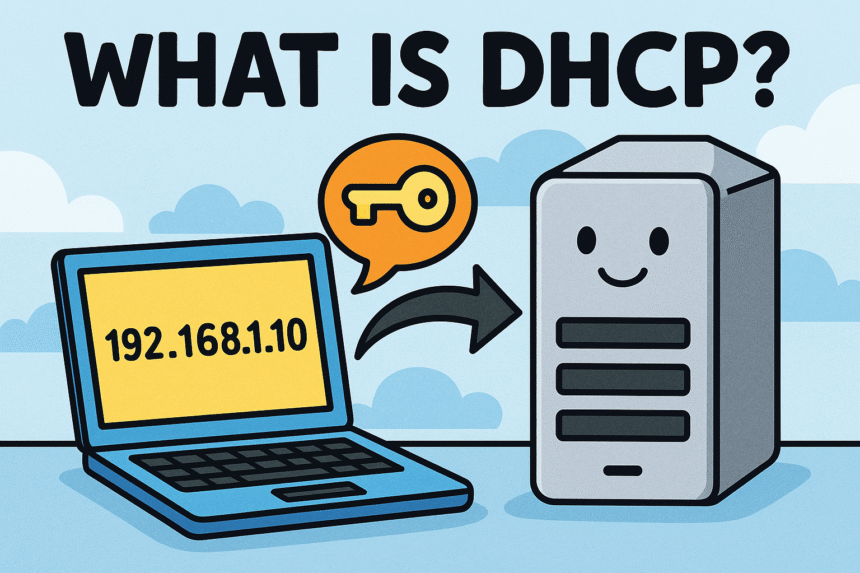

Have you ever wondered how your smartphone, laptop, or gaming console knows exactly how to connect to the internet as soon as you walk into your house? You don’t have to type in a long string of numbers every single time you join a Wi-Fi network. Instead, it just works like magic.
But it isn’t magic—it’s technology. Specifically, it is a dhcp server working hard behind the scenes.
Think of a dhcp server as the traffic cop of your network. Without it, data collisions would happen constantly, devices wouldn’t know where to go, and the internet as we know it would be incredibly difficult to navigate. In this guide, we are going to break down exactly what this server does, why you need it, and how it keeps the digital world spinning.
Key Takeaways
- Definition: A dhcp server automatically assigns IP addresses to devices on a network.
- Efficiency: It prevents manual errors and saves time for network administrators.
- Process: It uses a four-step process called DORA (Discover, Offer, Request, Acknowledge).
- Importance: Essential for both home networks and large business environments.
Understanding the Basics: What Does DHCP Stand For?
Before we dive deep into the mechanics of a dhcp server, we need to understand the acronym itself. DHCP stands for Dynamic Host Configuration Protocol. That sounds like a mouthful, but let’s break it down into simpler terms.
- Dynamic: It changes and adapts. It’s not static or fixed forever.
- Host: Any device that connects to a network (like your computer or phone).
- Configuration: The settings needed to make the device work properly.
- Protocol: A set of rules that computers follow to talk to each other.
So, when you put it all together, a dhcp server is simply a computer or router that uses this specific set of rules to automatically give your devices the settings they need to get online. Without this protocol, you would have to manually configure every single device with an IP address, a subnet mask, and a gateway address. Imagine having to do that every time you went to a coffee shop!
The beauty of this system is automation. In the early days of networking, administrators had to walk around with a notebook, writing down which IP address belonged to which computer. If they made a mistake and gave two computers the same address, neither would work. The dhcp server solved this headache completely.
How Does a DHCP Server Work? (The DORA Process)
The way a dhcp server talks to your device is actually quite polite. It follows a specific conversation pattern known in the IT world as the DORA process. This isn’t about the explorer with the backpack; it stands for Discover, Offer, Request, and Acknowledge.
Let’s imagine your laptop is a person walking into a crowded party (the network) looking for a seat (an IP address).
- Discover: Your laptop shouts, “Hello? Is there anyone here who can give me a seat?” This is the DHCP Discover message sent to the whole network.
- Offer: The dhcp server hears this shout and responds, “Hi there! I have a seat available at Table 192.168.1.5. Would you like it?” This is the DHCP Offer.
- Request: Your laptop replies, “Yes, please! I would love to take Table 192.168.1.5.” This is the DHCP Request.
- Acknowledge: The server finalizes the deal, saying, “Great! That seat is yours for the next 24 hours.” This is the DHCP Acknowledgement.
Once this four-step handshake is complete, your device is connected. It happens so fast—usually in a fraction of a second—that you never even notice it happening.
Why the “Lease” Matters
You might have noticed in the example above that the server gave the seat for “24 hours.” This is called a lease. A dhcp server rarely gives an IP address permanently. instead, it lends it to a device for a specific amount of time.
If your device stays on the network, it will ask to renew the lease before time runs out. If you leave the coffee shop or turn off your computer, the lease expires. The dhcp server then takes that IP address back and puts it in the pool to give to someone else later. This recycling of addresses is crucial because there are often more devices than there are available addresses.
The Main Components of DHCP Architecture
To really understand how a dhcp server functions, we need to look at the different pieces of the puzzle. It’s not just one single thing; it’s a relationship between different network elements.
The DHCP Server
This is the boss. It holds the database of available IP addresses and configuration information. In most homes, your Wi-Fi router acts as the dhcp server. In large offices, it is usually a dedicated robust computer or server running software like Microsoft Windows Server or Linux.
The DHCP Client
This is you. Or rather, your device. Any technology that can connect to a network—smartphones, laptops, smart fridges, tablets—has DHCP client software installed on it by default. It is programmed to look for a server the moment it turns on.
The IP Address Pool (Scope)
Imagine a bucket filled with numbered balls. This bucket is the Scope or Pool. The dhcp server reaches into this bucket to grab a number (IP address) to hand out. If the bucket gets empty, no new devices can connect. Network administrators have to make sure the scope is large enough to handle all the potential clients.
Subnet Mask and Gateway
While the IP address is the star of the show, the dhcp server also delivers other critical info.
- Subnet Mask: Tells the device which part of the network it belongs to.
- Default Gateway: Shows the device where the exit is (usually the router) so it can access the internet outside the local network.
Benefits of Using a DHCP Server
Why do we rely on this technology so heavily? The advantages are overwhelming compared to the alternative, which is Static IP addressing (typing everything in by hand).
1. Reduced Network Conflicts
One of the biggest nightmares in networking is an IP conflict. This happens when two devices try to use the same IP address. It’s like two people trying to sit in the exact same seat at the movie theater—it just doesn’t work. A dhcp server keeps a strict record of who has what address, ensuring that duplicates never happen.
2. simplified Network Administration
For anyone managing a network, whether it’s a dad managing a home Wi-Fi or an IT pro at a huge corporation, DHCP is a lifesaver. You can change the settings for the entire network from one single location. If you need to change the DNS server for 500 computers, you just update the dhcp server, and all 500 computers will get the new setting automatically when they renew their lease.
3. Mobility
We live in a mobile world. You move from your bedroom to the kitchen, then to school or work, and then to a café. In each location, you join a different network. Because of DHCP, your phone automatically adjusts to the new network’s rules without you touching a single setting. If we used static IP addresses, you would have to reconfigure your phone’s network settings five times a day!
DHCP Server vs. Static IP: What’s the Difference?
It is important to know that you don’t have to use a dhcp server. You can use Static IP addressing. But when should you use which? Let’s look at the comparison.
|
Feature |
DHCP (Dynamic) |
Static IP |
|---|---|---|
|
Ease of Setup |
Automatic and very easy |
Manual and time-consuming |
|
Maintenance |
Zero maintenance for the user |
High maintenance; must update manually |
|
Cost |
Free (built into routers/servers) |
Sometimes costs extra for public IPs |
|
Best Use Case |
Phones, Laptops, Tablets (Home/Office) |
Printers, Servers, Security Cameras |
|
Risk of Error |
Very Low |
High (human error is common) |
As you can see, for most everyday devices, dynamic addressing via a dhcp server is the clear winner. However, for devices that need to stay in one place digitally—like a printer that everyone in the office needs to find consistently—a Static IP is often better.
Common Problems with DHCP Servers (and How to Fix Them)
Even the best technology has hiccups. Sometimes, your dhcp server might act up, causing connection issues. If you have ever seen a “Limited Connectivity” or “Unable to obtain IP address” error on your computer, you have experienced a DHCP failure.
APIPA: The Cry for Help
When a Windows computer cannot find a dhcp server, it assigns itself a special IP address that starts with 169.254.x.x. This is called APIPA (Automatic Private IP Addressing). If you check your network settings and see a number starting with 169, you know immediately that your computer can’t talk to the server.
Troubleshooting Steps:
- Restart the Router: Since the router is usually the dhcp server, turning it off and on again resets the software.
- Check the Scope: If you are an admin, check if your pool of addresses is empty. You might have too many devices connected.
- Release and Renew: On a computer, you can force the device to ask for a new IP. In the command prompt, you type
ipconfig /releasefollowed byipconfig /renew.
Unauthorized DHCP Servers (Rogue Servers)
Sometimes, someone might plug a cheap router into a corporate network incorrectly. This rogue router might start handing out bad IP addresses to computers, creating chaos. This is a “Rogue DHCP Server.” Security features like DHCP Snooping on network switches prevent this by blocking offers from unauthorized ports.
Security Risks Associated with DHCP
While a dhcp server is incredibly useful, it wasn’t originally built with high security in mind. It is a trusting protocol. It assumes that everyone on the network is friendly.
Man-in-the-Middle Attacks
A hacker can set up a fake dhcp server. When your computer asks for an IP, the hacker’s server answers first. It gives you an IP address, but it sets the “Gateway” to the hacker’s computer. Now, all your internet traffic flows through the hacker’s machine before going to the real internet. They can see everything you are doing.
DHCP Starvation
In this attack, a hacker sends thousands of fake requests for IP addresses using made-up MAC addresses. The dhcp server tries to answer them all and eventually runs out of IP addresses (the pool empties). Now, legitimate users—like you trying to get some work done—cannot connect because there are no addresses left.
To stay safe, modern networks use security measures like port security and intrusion detection systems to watch for this kind of suspicious behavior.
Configuring a DHCP Server: A General Overview
Setting up a dhcp server sounds scary, but on a home router, it is usually pre-configured. However, if you are studying IT or want to configure a business server, here are the general steps involved.
Step 1: Install the Service
On a Windows Server, you would go to the “Add Roles and Features” wizard and select the DHCP Server role. On a Linux machine, you might install a package like isc-dhcp-server.
Step 2: Create a Scope
You must define the range of addresses the server can hand out.
- Start IP: 192.168.1.100
- End IP: 192.168.1.200
This range allows for 101 devices to connect simultaneously.
Step 3: Set Exclusions
Sometimes, you have static devices (like printers) inside that range. You must tell the dhcp server not to hand out those specific addresses, or you will get a conflict. This is called an exclusion range.
Step 4: Define Options
This is where you add the extra info:
- Router (Default Gateway): Usually 192.168.1.1
- DNS Servers: Examples include Google’s 8.8.8.8 or your ISP’s server.
- Lease Duration: Usually 8 days for wired networks and 24 hours for wireless.
Step 5: Activate
Once configured, you activate the scope, and the server begins listening for those “Discover” shouts from devices.
The Future of DHCP: IPv4 vs. IPv6
We are currently in a transition period in the world of the internet. The old system of addresses, called IPv4 (which looks like 192.168.1.1), has actually run out of addresses globally. We have simply made too many devices!
The solution is IPv6. These addresses are much longer and look confusing, containing both letters and numbers.
DHCPv6
You might wonder, “Do we still need a dhcp server with IPv6?” The answer is yes and no. IPv6 devices are smart enough to create their own addresses using a method called SLAAC (Stateless Address Auto-Configuration).
However, network administrators still like control. They want to track who is on the network and assign specific DNS servers. So, a version called DHCPv6 exists. It works similarly to the old version but is adapted for the new, massive address space of the future internet. It ensures that even as technology evolves, the management remains organized.
DHCP Failover: Keeping the Network Alive
For big companies, the network cannot go down. If the dhcp server crashes, nobody can get an IP address, and work stops. To prevent this, pros use something called Failover.
This involves setting up two servers that talk to each other.
- Load Balancing: Both servers share the work, splitting the address pool 50/50.
- Hot Standby: One server does all the work. The second server sits quietly and watches. If the first one dies, the second one jumps in instantly to take over.
This redundancy ensures that a hardware failure doesn’t result in a total network blackout.
Frequently Asked Questions (FAQs)
Here are some of the most common questions people ask about this technology.
Can I have two DHCP servers on one network?
Generally, no. If you have two servers handing out addresses on the same network without being configured to talk to each other, they will cause conflicts. They might give the same address to different devices, or hand out incorrect gateway information. This usually happens by accident when someone plugs in a second router.
Does a DHCP server slow down my internet?
No. The dhcp server only works when you first connect to the network or when you renew your lease. Once you have your IP address, the server steps back, and your traffic goes directly to the router. It does not filter or slow down your browsing.
What happens if the DHCP server stops working?
If the server goes down, existing devices will stay connected until their “lease” expires. However, new devices won’t be able to connect at all. Eventually, as leases expire, everyone will lose connectivity.
Is DHCP safe for my home network?
Yes, for home networks, the built-in dhcp server on your router is perfectly safe and secure enough. Just make sure you have a strong Wi-Fi password so strangers can’t join your network and get an IP address.
Why DHCP is Critical for Tech Trends
As we move toward a world of IoT (Internet of Things), the role of the dhcp server becomes even more critical.
Imagine a smart home. You have smart bulbs, smart plugs, a smart thermostat, a video doorbell, and maybe even a smart toaster. That is a lot of devices. Managing IP addresses for 50+ household items manually would be impossible.
The dhcp server handles this scale effortlessly. It ensures that your smart bulb can talk to your phone so you can turn the lights off from bed. As tech news sites like Silicon Valley Time often report, the explosion of connected devices is driving the need for more robust and intelligent network management tools, all of which rely on the foundation of DHCP.
Summary: The Unsung Hero of Networking
In conclusion, while it may just be a piece of software running on a router or a server, the dhcp server is the glue that holds our networks together.
- It automates the complex process of IP addressing.
- It reduces human error significantly.
- It allows us to move freely between networks without changing settings.
- It manages the scarce resource of IP addresses efficiently through leasing.
Next time your phone connects to Wi-Fi instantly, take a brief moment to appreciate the DORA process happening in the background. It’s a small, silent conversation that makes our modern digital lives possible. Whether you are a gamer, a student, or just someone who loves scrolling through social media, you owe a lot of your connectivity to the humble dhcp server.



