



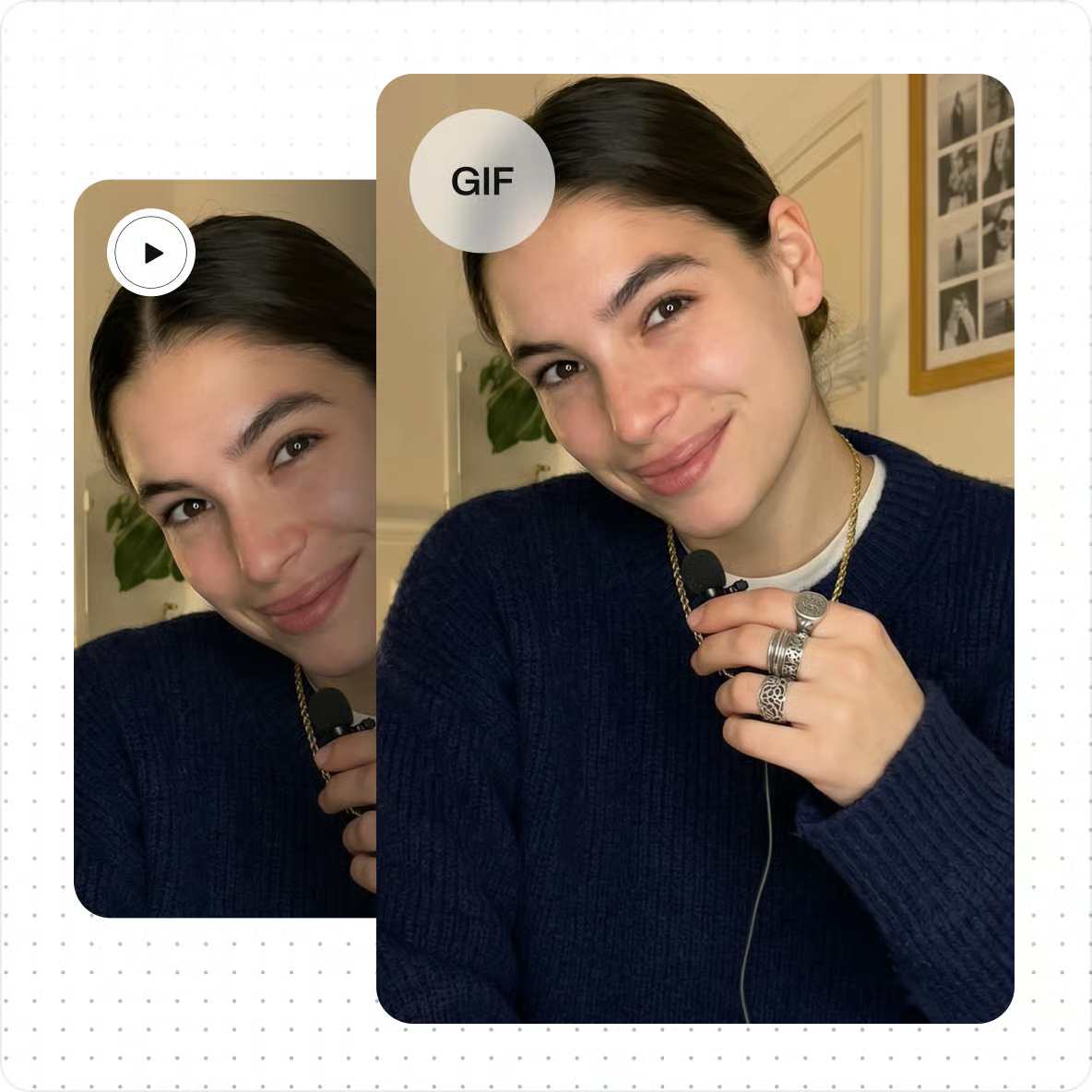

Video-to-GIF conversion is one of the easiest ways to turn a short video moment into a lightweight, shareable animation. Instead of sending an entire video, you can select the part you actually want, convert it into a GIF, and share it on websites, social media, chats, presentations, or online communities.
Here’s the thing: creating a GIF does not have to involve complicated editing software. A simple online converter can handle most of the work. Upload your video, select the section you want, adjust a few settings, and create an animated GIF within a few steps.
Whether you want to capture a funny reaction, demonstrate a feature, create a tutorial snippet, or turn a memorable clip into an animation, understanding how the process works can help you get much better results.
Read more: Anonymous Instagram Viewer: Discover Hidden Stories
What Is Video-to-GIF Conversion?
Video-to-GIF conversion means taking frames from a video file and saving them as an animated GIF image.
A normal video usually includes moving images and audio. A GIF displays a sequence of images repeatedly, creating the appearance of motion. GIF files normally do not contain audio, which makes them useful when you only need a short visual moment.
The GIF format was originally developed by CompuServe and released in 1987. It later became widely used for web graphics and animation.
How Does a Video-to-GIF Tool Work?
A Video-to-GIF tool reads the frames inside your uploaded video and converts selected frames into an animated image.
The process usually looks something like this:
- Upload or select a video.
- Choose where the GIF should start.
- Select the ending point or duration.
- Adjust dimensions, frame rate, or quality.
- Preview the animation.
- Create the final GIF.
Behind the scenes, the converter extracts individual frames and combines them into a GIF animation.
You do not need to understand the technical process to use the tool, but knowing the basics can make it easier to choose the right settings.
Why Convert a Video Into a GIF?
GIFs are useful because they communicate something quickly.
Instead of asking someone to watch a 30-second video, you could create a five-second looping animation showing the most important moment.
That makes GIFs useful for reactions, demonstrations, memes, product previews, software tutorials, social posts, and visual instructions.
They can also play automatically on many platforms, allowing people to understand the content without pressing a play button.
GIF vs. Video: What Is the Difference?
A video and a GIF might look similar when they are playing, but technically they are quite different.
Video formats such as MP4 can contain audio and typically use advanced video compression. GIF is an image format that stores multiple image frames to create animation.
GIF also uses an indexed color palette and is limited to 256 colors per frame. Because of that limitation, photographs and complex video scenes may not look as smooth as the original video.
For longer clips or detailed footage, video is usually the better choice. For short looping animations, GIF can be much more convenient.
What Makes a Good Video-to-GIF Converter?
A useful converter should make the process simple without removing important controls.
Look for features such as trimming, resizing, frame-rate adjustment, quality controls, cropping, and preview options.
A good interface should also clearly show what part of the video you are converting. You should not have to repeatedly generate a new file just to find the correct starting point.
To be honest, most users do not need dozens of advanced settings. They mainly need a tool that works quickly and gives them enough control over the final animation.
Choose the Best Part of Your Video
One of the biggest mistakes people make is converting too much footage.
A GIF usually works best when it focuses on a single action, reaction, movement, or idea.
For example, if you have a 40-second video but the interesting moment happens between seconds 12 and 17, there is little reason to convert the entire recording.
Trim the unnecessary beginning and ending before conversion.
A shorter Video-to-GIF conversion can create a cleaner animation and may also help keep the resulting file size more manageable.
Keep Your GIF Short
Short animations tend to work better than long ones.
There is no universal rule saying a GIF must be a certain number of seconds long. The right duration depends on what you are trying to show.
A reaction might need only two or three seconds. A short product demonstration may need six or eight seconds.
The important thing is to remove anything that does not contribute to the message.
If viewers understand the point after four seconds, making them watch another ten seconds rarely improves the GIF.
Understand GIF Resolution
Resolution refers to the width and height of the animation in pixels.
A larger resolution usually provides more visible detail, but it can also increase file size.
Suppose your original video is 1920 × 1080 pixels. You may not need a GIF at that full resolution, especially if the animation is going inside a blog post, chat message, or small webpage section.
Reducing the dimensions can make the GIF easier to load and share.
Try to balance image clarity with practical file size rather than automatically choosing the highest available resolution.
Adjust the Frame Rate Carefully
Frame rate controls how many images appear during each second of animation.
Higher frame rates can make movement appear smoother, but they also require more frames.
More frames usually mean more image data.
For a simple reaction GIF, you may not need the same frame rate as the original video. Lowering it slightly can reduce unnecessary frames while still producing natural-looking movement.
The best setting depends on how quickly objects are moving in your clip.
Why GIF File Size Can Become Large
People sometimes assume GIF files are always smaller than videos. That is not necessarily true.
GIF was designed as an image format rather than a modern video compression format. A long, high-resolution animation containing lots of frames can become surprisingly large.
Complex colors, movement, dimensions, duration, and frame count can all influence the result.
This is why a carefully optimized Video-to-GIF file is often better than simply converting the entire original video at maximum settings.
How to Reduce GIF File Size
There are several straightforward ways to create a smaller GIF.
Start by shortening the animation. Then consider reducing its width and height or lowering the frame rate.
You can also crop away unnecessary areas of the video. If half the frame contains a background that adds nothing to the animation, there is little reason to keep it.
Some converters provide optimization or compression controls as well.
The goal is not to make the file as tiny as possible. It is to find a useful balance between size and visual quality.
Crop the Video Before Creating a GIF
Cropping can make a big difference when creating an animation.
Imagine you recorded your entire desktop but only want to show one button being clicked. Converting the whole desktop area wastes space and makes the important action harder to see.
Crop the video around the part viewers actually need.
This approach is especially useful for tutorials, app demonstrations, screen recordings, gaming clips, and product demonstrations.
A focused GIF is usually easier to understand than one filled with unnecessary visual information.
When Should You Add Text?
Text can make a GIF easier to understand when the visual alone does not provide enough context.
You might add a short caption, instruction, reaction, label, or callout.
Keep it brief.
Large paragraphs are difficult to read inside a moving animation. A few clear words generally work better.
Also make sure the text remains visible long enough for viewers to read it. Flashing a sentence on screen for half a second will only frustrate people.
Use Video-to-GIF for Tutorials
A short GIF can be surprisingly useful for teaching simple actions.
For example, suppose you are explaining how to change a setting inside an application. Instead of adding five screenshots, you could show the action through a short looping animation.
Readers can watch the movement repeatedly without restarting a video.
This makes Video-to-GIF conversion especially useful for software tutorials, help centers, documentation, troubleshooting guides, and educational blog posts.
For longer explanations, however, a normal video may still be easier to follow.
Use GIFs for Social Media Content
GIFs can also turn memorable video moments into quick social content.
You might convert a reaction, product movement, before-and-after moment, animation, or short visual joke.
What’s interesting is that a strong GIF often focuses on one very clear idea. It does not try to tell an entire story.
Keep the crop tight and make sure the main action is immediately visible.
Platform support and upload limits can vary, so check the requirements of the site where you plan to publish the file.
Turn Screen Recordings Into GIFs
Screen recordings are another great source for GIF creation.
You can record yourself completing a small task and then convert the useful section into an animation.
For example:
- Clicking a software feature
- Opening a menu
- Changing a setting
- Completing an online form
- Demonstrating a website interaction
- Showing a simple design process
A Video-to-GIF workflow can make these demonstrations easy to place inside guides and support articles.
Try to keep mouse movement smooth so viewers can follow what is happening.
Can You Convert MP4 to GIF?
Yes. MP4 is one of the most common video formats used as a source when creating GIF animations.
Many conversion tools also accept formats such as MOV, AVI, WebM, or other video containers, although exact compatibility depends on the specific converter.
If your file does not upload, check the supported format list instead of repeatedly trying the same file.
Converting the source video to a common format such as MP4 can sometimes make compatibility easier.
Does a GIF Include Sound?
Standard GIF animations do not contain an audio track.
If sound is important to your content, converting the video into a GIF may not be the right solution.
For example, a spoken tutorial, music clip, interview, or video where sound effects provide important context will usually work better as an MP4 or another video format.
GIF is strongest when the visual action can communicate the message by itself.
How to Get Better Video-to-GIF Quality
Start with a good source video.
If the original clip is blurry, badly compressed, or extremely dark, the converter cannot magically restore all the missing detail.
Choose a clean source, trim it carefully, and avoid unnecessary resizing.
When your converter allows quality adjustments, compare the preview instead of automatically choosing the maximum option.
Sometimes a slightly smaller animation looks almost identical while producing a much more practical file.
Avoid Overusing GIFs
GIFs can make pages more engaging, but too many animated elements can become distracting.
If five different animations are moving at the same time, readers may struggle to focus on the actual content.
Use GIFs when motion explains something better than a static image.
A single useful animation can add real value. Ten unnecessary animations can make a webpage feel busy and may increase the amount of data visitors need to load.
Video-to-GIF for Website Owners
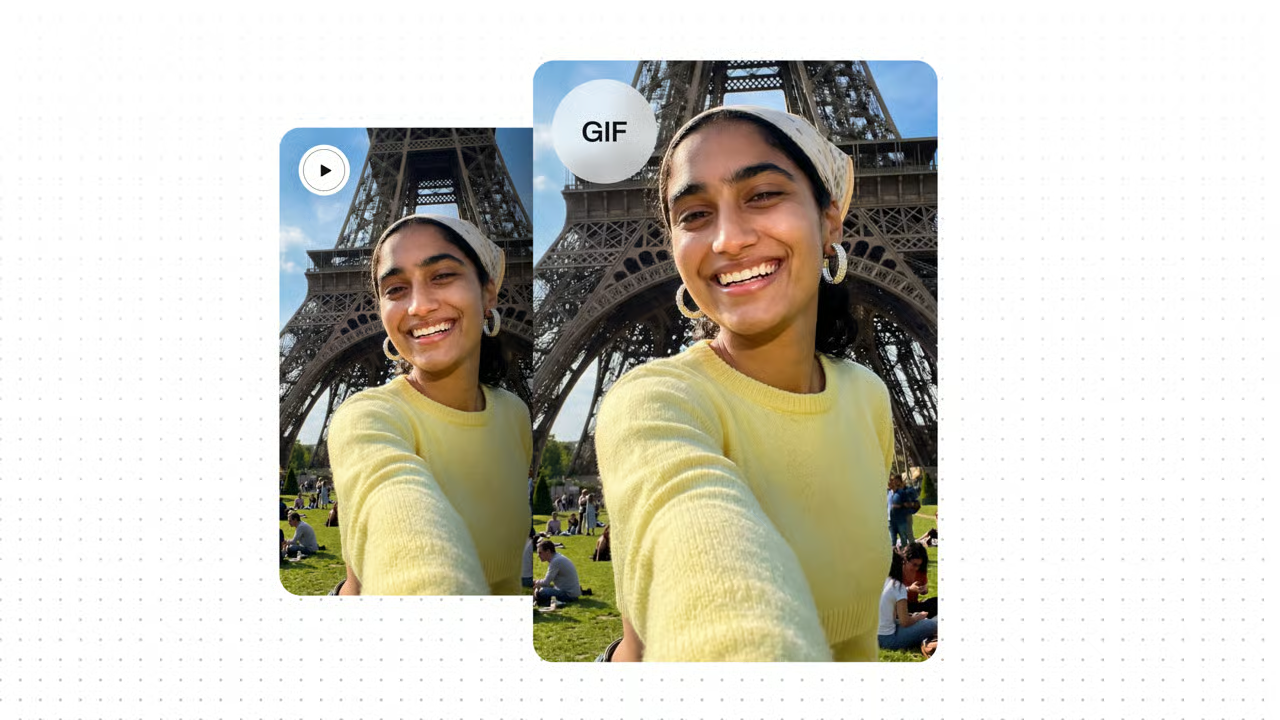
Website owners often use GIFs for tutorials, demonstrations, visual examples, and short feature previews.
If you run a blog or online tool website, a well-created animation can explain a process without requiring visitors to leave the page or open a full video player.
Performance still matters.
Large files can slow page loading, particularly for visitors using slower connections or mobile networks. Optimize animations before publishing them and consider whether a modern video format would work better for very long or detailed content.
Video-to-GIF for Designers and Creators
Designers can use GIFs to present movement that cannot be communicated through a static mockup.
For example, a designer could show a button animation, interface transition, logo movement, loading effect, or before-and-after sequence.
Content creators can also turn highlights from longer videos into short loops.
This makes Video-to-GIF conversion a practical bridge between full video editing and static imagery.
You do not always need an advanced animation program when the movement already exists inside a video.
Common Video-to-GIF Mistakes
The most common mistake is trying to fit too much information into one GIF.
Another is exporting at unnecessarily large dimensions.
Poor cropping, excessive frame rates, tiny text, long durations, and low-quality source videos can also hurt the final result.
Check the animation before publishing it. Watch the loop several times and ask one simple question: can someone understand what is happening without additional explanation?
If the answer is yes, your GIF is probably doing its job.
Is Video-to-GIF Conversion Safe?
Safety depends on the converter you use.
If you are using an online tool, remember that your video may need to be uploaded to a server for processing. Avoid uploading private, confidential, financial, business-sensitive, or personal recordings unless you understand how the service handles files.
Check the tool’s privacy policy and file-retention information when privacy matters.
For sensitive footage, an offline desktop converter may offer greater control because the video can potentially remain on your own device.
Final Thoughts on Creating Better GIFs
A good Video-to-GIF tool should make it easy to turn a useful moment from a video into a clean, shareable animation. Start with a short clip, crop around the important action, choose sensible dimensions, and adjust the frame rate only as much as needed. The best GIF is not necessarily the largest or highest-quality export. It is the one that communicates the idea quickly and clearly.
If you want to understand the technology behind the format, the Wikipedia page about GIF provides useful background on the Graphics Interchange Format, including its development, animation support, color limitations, and technical history. GIF was introduced by CompuServe in 1987 and remains widely recognized as a format for simple animated images on the web.