



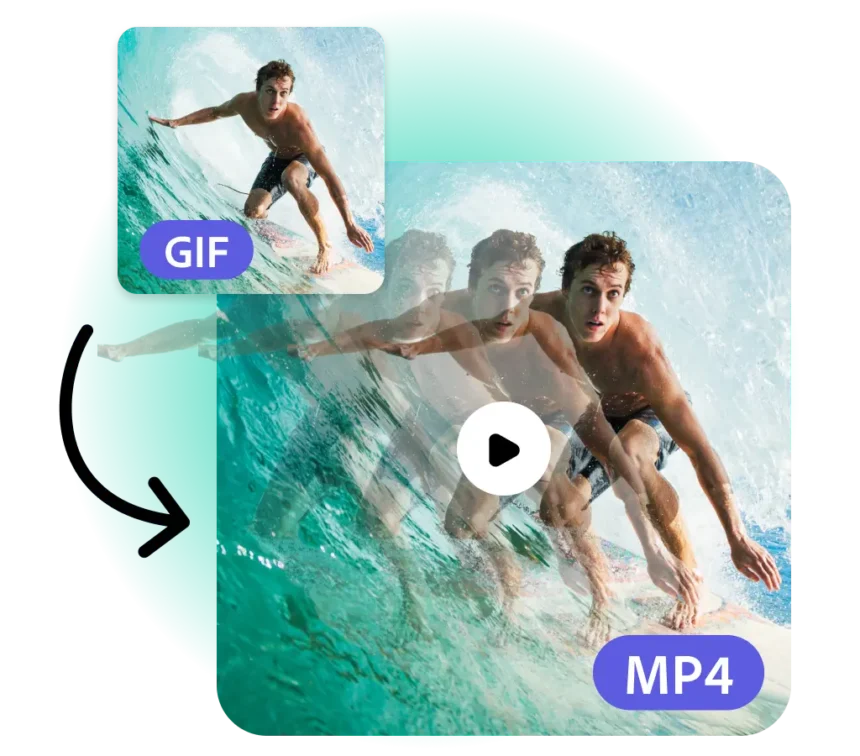

GIF to MP4 conversion is a simple way to turn an animated image into a standard video file that is easier to upload, share, edit, and play across different platforms. If you have ever downloaded a funny GIF, created a short animation, or saved a looping graphic and then discovered that a website wants a video instead, converting it to MP4 can solve the problem quickly.
The process is usually straightforward. You upload your GIF, choose basic video settings if needed, convert the file, and save the finished MP4.
Here’s the thing: GIFs are great for quick animations, but they are not always the most practical format for modern video sharing. MP4 is widely used for digital video and can often provide better compression for animated content.
What Is a GIF?
GIF stands for Graphics Interchange Format. It is an image file format developed by a team at CompuServe and released in 1987. GIF files can contain multiple images or frames, allowing them to display short animations.
Unlike a regular JPG or PNG image, an animated GIF can move. Each frame appears for a certain amount of time, creating the effect of motion.
You often see GIFs used for:
- Memes and reactions
- Short demonstrations
- Animated graphics
- Social media posts
- Website illustrations
- Simple tutorials
- Looping visual effects
GIF is still popular because it is simple and easy to view in browsers and messaging platforms.
What Is an MP4 File?
MP4 is a multimedia container format commonly associated with video and audio. The MP4 file format is formally known as MPEG-4 Part 14, and its structure is based on the ISO Base Media File Format.
An MP4 file can contain video, audio, subtitles, images, and certain types of metadata, depending on how the file is created.
For everyday users, the important point is simpler: MP4 is one of the most practical formats for storing and sharing video.
Why Convert GIF to MP4?
There are several reasons you might want to convert GIF to MP4 instead of keeping an animation in its original format.
One of the biggest reasons is file efficiency. Animated GIFs store sequences of image frames and use the GIF format’s compression system. Video formats can use video compression methods designed specifically for moving content.
That means a video version can sometimes be considerably smaller than the original animation while still looking good.
Easier Video Sharing
Many websites and apps are built around video uploads.
If a platform does not accept animated GIF files, converting the animation into MP4 gives you a standard video that may be easier to upload.
This can be useful for social posts, presentations, websites, online courses, advertisements, and other digital projects.
Better Editing Options
Video editors generally offer more control over MP4 files than GIF animations.
After conversion, you may be able to:
- Trim the beginning or end
- Add background music
- Insert text
- Add transitions
- Adjust playback speed
- Resize the video
- Combine it with other clips
This makes conversion useful when your GIF is only the starting point of a larger video project.
How Does a GIF to MP4 Converter Work?
A GIF to MP4 converter reads the individual frames stored inside an animated GIF and turns those frames into a video sequence.
The software then encodes that sequence into a video format and places it inside an MP4 container.
From the user’s side, the process usually feels much simpler than what is happening behind the scenes.
You provide the animation, select your settings, and let the converter handle the technical work.
How to Convert GIF to MP4 in Seconds
Most online converters follow a similar process.
Step 1: Upload Your GIF
Choose the animated GIF stored on your phone, tablet, or computer.
Depending on the tool you use, you may be able to drag and drop the file directly into the upload area.
Step 2: Check the Animation
Preview your GIF if the converter provides that option.
Make sure you uploaded the correct file and check that the animation plays normally before continuing.
Step 3: Choose MP4 as the Output
Select MP4 as your target format.
Some tools automatically use MP4 when they are specifically designed for GIF conversion, so you might not need to choose anything.
Step 4: Adjust Video Settings
You may see optional controls for resolution, quality, frame rate, dimensions, or compression.
For a simple conversion, the default settings are often enough.
If you need the video for a particular website or project, however, it is worth checking its upload requirements first.
Step 5: Convert and Save
Start the conversion.
After processing is complete, save the resulting MP4 file to your device and play it once to make sure everything looks right.
That’s really all there is to it.
What Happens to GIF Quality During Conversion?
Quality depends heavily on the original animation and the conversion settings.
Converting a low-resolution GIF into a high-resolution MP4 will not magically create missing detail. The converter can resize the image, but it cannot fully restore information that was never present in the source.
To be honest, keeping the original dimensions is often a safer choice when quality matters.
Excessive resizing can make edges look soft or expose compression artifacts that were less noticeable in the smaller version.
GIF vs MP4: What Is the Difference?
GIF and MP4 can both display moving visuals, but they work differently.
GIF is fundamentally an image format that can store multiple frames for animation. MP4, on the other hand, is a multimedia container widely used for video. Wikipedia notes that modern alternatives such as MP4 are commonly used instead of GIF for video-style content because of space and quality considerations.
The right format depends on what you are doing.
For a tiny looping reaction or simple website animation, GIF can still make sense. For longer motion, video sharing, editing, or more efficient delivery, MP4 is often more practical.
Can Converting a GIF Reduce File Size?
Yes, it can, although the exact result depends on the file.
Video compression is designed to handle sequences of moving frames efficiently. Instead of treating every frame like a largely separate image, video codecs can take advantage of similarities between frames.
This can make an GIF to MP4 conversion useful when an animated file has become too large for convenient sharing.
That said, there is no guarantee that every converted video will be smaller. Resolution, bitrate, frame rate, video codec, animation length, and encoder settings can all influence the final size.
Does MP4 Support Transparency?
This is one area where you need to be careful.
GIF supports simple transparency, where a chosen color can be treated as transparent. A normal MP4 video workflow generally does not preserve GIF-style transparency in the same way.
If your original animation has a transparent background, the converted video may display a solid background instead.
The exact result depends on the converter and the video format or codec being used.
Check Transparent GIFs Before Converting
If transparency is important for your website, design, or editing project, test the converted file before deleting the original.
Keep your source GIF as a backup.
That gives you the option to convert it into another format later if MP4 does not meet your transparency needs.
What Happens to a Looping GIF?
GIF animations commonly repeat automatically.
When you convert GIF to MP4, the animation becomes a video with a defined duration. Whether it automatically repeats depends on the video player or platform where you upload it.
For example, a website can be configured to loop a video continuously, while a standard desktop video player may simply stop at the end.
This is an important difference if the endless loop is part of your design.
Can You Add Audio After Conversion?
Yes.
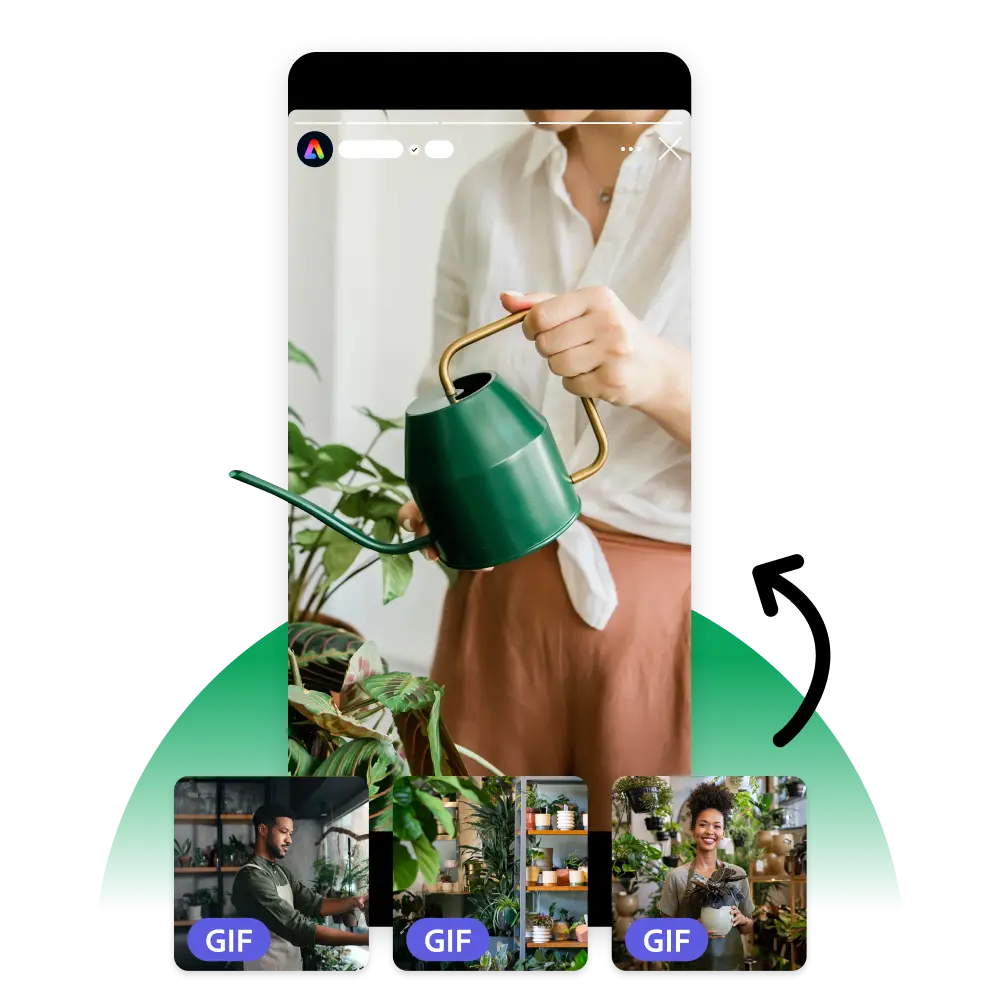
A GIF itself does not function like a normal video file with an audio track. Once the animation has been converted to MP4, you can open it in compatible video-editing software and add music, narration, sound effects, or another audio track.
What’s interesting is that this can turn a very basic animation into a more complete video.
A reaction GIF could become a meme video. A short product animation could become an advertisement. A step-by-step visual could become part of a tutorial.
How to Get Better Results When Converting GIFs
A few small choices can make a noticeable difference.
Use the Best Original File
Always start with the highest-quality version of the GIF you have.
Repeatedly downloading, resizing, and processing files can eventually reduce their visual quality.
Starting with a clean source gives the converter more useful information to work with.
Keep the Original Aspect Ratio
Avoid stretching the animation.
If a GIF is square, forcing it into a wide-screen shape will distort the content unless you crop or add space around it.
Preserving the original aspect ratio keeps people, objects, text, and graphics looking natural.
Avoid Unnecessary Resolution Changes
Making a 400-pixel-wide animation into a huge HD video does not automatically make it sharper.
Upscaling simply creates additional pixels based on the existing image.
Use a resolution that fits your intended purpose instead of automatically choosing the largest available option.
Preview Before Publishing
Always watch the finished file.
Look for:
- Missing frames
- Strange background colors
- Distorted proportions
- Incorrect speed
- Poor image quality
- Unexpected cropping
A ten-second check can save you from uploading the wrong version.
Is an Online GIF to MP4 Converter Safe?
Safety depends on the service you use.
When using any online file converter, remember that you are potentially uploading your file to another company’s server.
For ordinary memes and public graphics, that may not be a major concern. For confidential business material, private recordings, client content, or sensitive files, you should read the service’s privacy and file-retention policies before uploading anything.
If privacy is especially important, offline conversion software may be a better option.
When Should You Keep the GIF Instead?
Conversion is useful, but you do not need to convert every animated file you have.
Keep the GIF when it already works perfectly for its intended purpose.
A small reaction image used in a conversation, for example, probably does not need to become a video.
GIF may also be convenient when you need an animation that displays directly in a context designed specifically for animated images.
The goal is not to replace one format with another everywhere. It is to choose the right format for the job.
When Is MP4 the Better Choice?
MP4 makes sense when your content behaves more like a video than an image.
You might choose MP4 when you are:
- Uploading an animation to a video platform
- Adding sound or music
- Creating social media video content
- Editing multiple clips together
- Working with longer animations
- Trying to reduce a large animated file
- Preparing content for a presentation
- Creating video content for a website
In those situations, GIF to MP4 conversion can make the next steps much easier.
Can You Convert MP4 Back to GIF?
Yes, many media tools can also convert short MP4 videos into animated GIFs.
However, converting back and forth repeatedly is not ideal if quality matters.
Every format has different limitations and compression behavior. It is better to keep the highest-quality original file and create separate versions from that source whenever possible.
Think of the original as your master copy.
Common Mistakes to Avoid
The conversion process is easy, but a few mistakes can cause disappointing results.
One common problem is increasing the resolution too much. Another is ignoring the aspect ratio and accidentally stretching the animation.
People also sometimes forget that a transparent GIF may not behave the same way after becoming an MP4 video.
Finally, do not assume that a huge quality setting automatically gives you a better result. Higher settings can create unnecessarily large files without producing a noticeable visual improvement.
Is GIF to MP4 Conversion Worth It?
For many situations, yes.
GIF to MP4 conversion is especially useful when you need an animation to behave like a regular video. MP4 gives you more flexibility for video editing, uploading, playback, and adding audio.
Still, the original GIF has its place.
If you only need a short looping image and your website or app already supports it well, there may be no reason to convert it.
The best choice comes down to where the file will be used and what you plan to do with it afterward.
Final Thoughts on Converting GIF to MP4
A good GIF to MP4 converter takes what could sound like a technical task and turns it into a simple process: upload your animation, choose MP4, check your settings, convert the file, and review the result. Keep the original GIF as a backup, preserve the correct aspect ratio, and avoid unnecessary upscaling for the best practical results. If you want to understand the format behind your converted video in more detail, the Wikipedia page about the MP4 file format provides useful background on MPEG-4 Part 14 and the development of the format.