





GIF Cropper tools make it easy to remove unwanted areas from an animated image without rebuilding the entire file. Whether you want to focus on a character, remove empty space, prepare a GIF for social media, or simply make the animation fit a specific layout, cropping can save time and improve the final result. Here’s the thing: a good GIF workflow should be simple, quick, and precise.
A GIF is different from a regular still image because it can contain multiple frames. A useful cropping tool therefore needs to apply the selected crop area consistently across the animation. That makes choosing the right tool important, especially when the original GIF has movement or changing content.
What Is a GIF Cropper?
A GIF Cropper is a tool designed to change the visible dimensions of an animated GIF. Instead of cutting away frames or shortening the animation, cropping focuses on the image area shown in each frame.
For example, imagine a reaction GIF with a large amount of empty space around the subject. Cropping can remove that extra space while keeping the animation itself intact.
The basic idea is similar to cropping a photograph, but animated files require additional processing because several images may be stored inside one GIF.
How GIF Files Work
To understand why GIF cropping can be slightly different, it helps to know what a GIF actually is.
GIF stands for Graphics Interchange Format. The format was developed by CompuServe and released in 1987. It can store multiple images in a single file, which allows it to create simple animations.
GIF supports a palette of up to 256 colors for an image and uses lossless LZW compression. These characteristics helped make the format practical for graphics and small animations on the web.
Why Crop an Animated GIF?
There are plenty of practical reasons to crop an animation.
You might want to remove a distracting background, make the main subject more prominent, or fit the GIF into a particular website layout. Sometimes the goal is simply to make the image look cleaner.
Cropping can also help when a GIF has been created from a larger video. The original frame may contain areas that are not useful for the final animation.
Benefits of Cropping GIFs
One obvious benefit is better framing. When unnecessary areas are removed, viewers can focus more easily on the important part of the animation.
Cropping can also reduce the dimensions of the file. This does not automatically guarantee a smaller file size because GIF size depends on several factors, including frame count, colors, compression, and image complexity. Still, reducing the canvas can sometimes help.
Another benefit is consistency. A properly cropped animation can look much better when placed inside a webpage, presentation, post, or other digital design.
What Makes a Good GIF Cropping Tool?
A useful tool should make the cropping process straightforward.
Look for a clear preview, an easy-to-use crop box, and controls that let you select the exact area you want to keep. The tool should also handle animated frames correctly rather than treating the GIF as if it were only one still picture.
Export options are worth checking too. Depending on the tool, you may be able to preserve the GIF format after cropping.
How to Crop a GIF Step by Step
The exact buttons vary from one application to another, but the general process is simple.
1. Upload the GIF
Start by selecting the animated GIF you want to edit. Some tools allow drag-and-drop, while others provide a standard file-selection button.
2. Preview the Animation
Check the GIF before choosing the crop area. Since it is animated, look at different moments rather than judging the first frame alone.
3. Select the Crop Area
Use the crop handles to choose the part of the image you want to keep. Try to include the important moving elements throughout the animation.
4. Check the Result
Preview the cropped animation before exporting it. This is especially useful when the subject moves close to the edges.
5. Export the Cropped GIF
Once everything looks right, export the result. If the tool offers quality or optimization settings, choose settings that fit your intended use.
Keep the Main Subject Centered
Good cropping is not just about cutting away pixels.
If the subject moves around the frame, leave enough room for that movement. A crop that looks perfect in one frame could cut off an important part of the animation later.
This is one reason previewing the complete GIF is important.
Cropping vs. Resizing a GIF
Cropping and resizing are often confused, but they do different things.
Cropping removes part of the visible image. Resizing changes the dimensions of the entire image while keeping the overall composition.
For instance, if a GIF is 800 pixels wide and you remove the left and right edges, you are cropping it. If you keep the entire image but reduce its width to 400 pixels, you are resizing it.
You can also use both techniques together.
Cropping vs. Trimming
There is another important difference: cropping changes the visual area, while trimming changes the animation’s duration.
If a GIF contains an unnecessary beginning or ending, trimming can remove frames from the timeline. If the problem is empty space around the subject, cropping is the better choice.
Some editing tools support both functions, which can make them useful for broader GIF editing.
GIF Cropper for Social Media
Animated GIFs are often used online to communicate reactions, jokes, demonstrations, and short visual moments.
A tightly framed GIF can work better in these situations because viewers can immediately see what is happening. Removing unnecessary space can also make an animation easier to fit into different layouts.
Still, it is worth checking the requirements of the platform where you plan to use the file. Different services may have their own limits for file dimensions, size, or animation length.
GIF Cropper for Websites
Website owners and designers may crop GIFs to fit specific content areas.
For example, an animation created in a wide format may not look right inside a smaller content card. Cropping can make the composition fit the available space more naturally.
At the same time, website performance matters. GIF files can become relatively large, particularly when they contain many frames or detailed imagery. In some cases, another animated format may be more efficient.
How Cropping Can Affect Quality
Cropping itself does not necessarily mean that the animation will become blurry. If the crop simply removes pixels while leaving the remaining pixels unchanged, the visible portion can retain its original resolution.
However, problems can appear if the cropped GIF is later enlarged. Increasing the displayed size does not create new image detail.
GIF also has a limited color palette, with up to 256 colors per image, so photographs and complex gradients may not look as natural as they would in some newer image formats.
Choosing the Right Crop Dimensions
The best dimensions depend on where the GIF will be used.
For a website, you may need a specific width or aspect ratio. For a social post, the platform may encourage a particular shape. For personal use, you have much more freedom.
If you already know the target dimensions, plan the crop around them instead of cropping randomly and resizing later.
Common GIF Cropping Mistakes
One common mistake is cropping too tightly.
A moving subject needs some breathing room. If a character moves from one side of the frame to another, an extremely tight crop may cut off important content.
Another mistake is checking only one frame. An animated GIF can change significantly from beginning to end.
It is also easy to assume that smaller dimensions always mean a tiny file. GIF file size depends on more than width and height.
Privacy and File Safety
If you are using an online editor, think about the file you are uploading.
Avoid uploading personal or confidential images to a service unless you understand how the service handles uploaded files. For ordinary public GIFs, this may not be a major concern, but private content deserves extra care.
Offline editing software can be useful when you want the file to stay on your own device.
Can You Crop GIFs on a Phone?
Yes, depending on the editing app or browser-based tool you choose.
The process is generally the same: select the GIF, define the crop area, preview the animation, and save the edited version. A larger screen can make precise cropping easier, but modern mobile interfaces can still handle simple edits.
If accuracy matters, zoom in and check the edges carefully before saving.
Can You Crop GIFs Without Losing Animation?
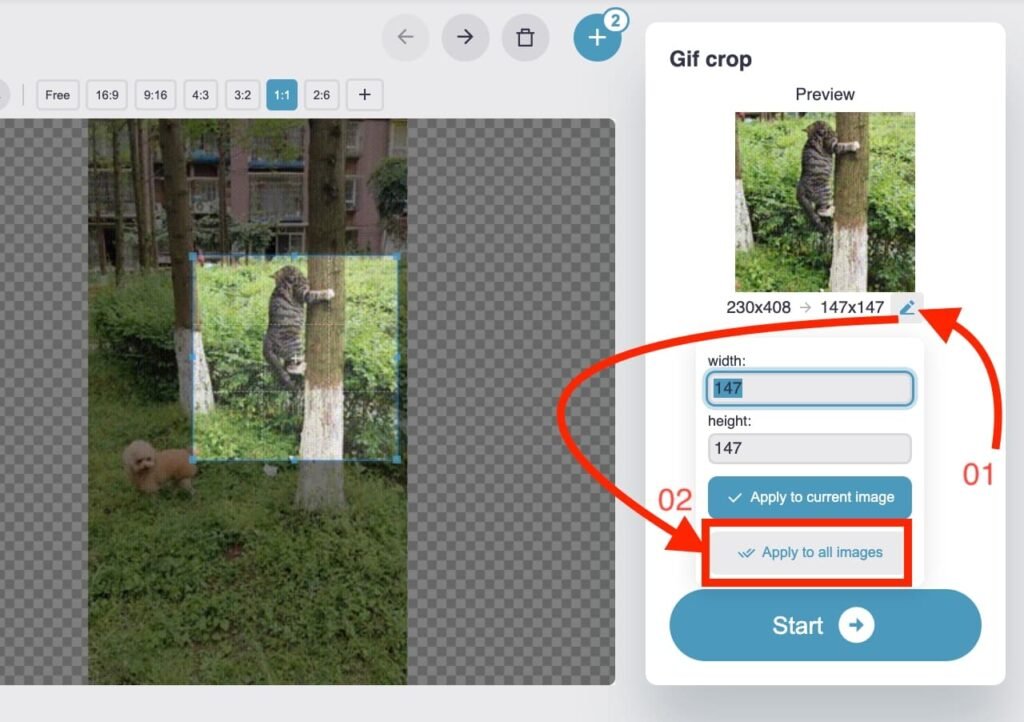
A properly designed GIF editor can crop the visible area while preserving the animation.
The important part is that the tool processes the frames correctly. If you convert the GIF into a still image first, you may lose the animation unless the frames are handled separately.
For this reason, use an editor that specifically supports animated GIF files when animation preservation is important.
When Should You Use Another Format?
GIF remains useful for simple animations, but it is not ideal for every situation.
The format’s color limitations and potentially large file sizes can make alternatives attractive for some web projects. Wikipedia notes that GIF has increasingly been replaced in some uses by formats such as PNG for static images and MP4 for video-like content.
That does not make GIF useless. It simply means the format should match the job.
Tips for Better GIF Editing
Start with the highest-quality original file you have. Editing an already compressed or low-resolution GIF can limit the final result.
Preview the whole animation before exporting.
Keep the crop focused on the important content, and avoid cutting too close to moving objects.
Finally, check the finished file at its actual display size. Something that looks fine when zoomed in may appear very different when shown at a smaller size.
Frequently Asked Questions
What does a GIF Cropper do?
It removes unwanted portions of the visible area of an animated GIF while keeping the useful part of the animation.
Does cropping remove GIF frames?
Normally, cropping changes the image area rather than the animation timeline. Removing frames is generally considered trimming.
Can cropping reduce GIF file size?
It can, but there is no guarantee. File size depends on factors such as dimensions, frame count, colors, and the complexity of each frame.
Does GIF cropping reduce quality?
Cropping alone does not necessarily reduce the quality of the remaining image. Quality can be affected if the GIF is resized, converted, or re-encoded during the editing process.
Is GIF still useful?
Yes. GIF remains useful for short, simple animations and web graphics. Its broad support and straightforward animation capabilities keep it relevant, even though other formats can be more efficient for certain tasks.
Final Thoughts on GIF Cropping
A GIF Cropper can be a simple but valuable editing tool when you need to improve the framing of an animation. The best approach is to focus on the subject, check the entire animation, choose suitable dimensions, and preview the final result before sharing it.
To be honest, you do not need a complicated editing workflow for most basic GIF jobs. A clear crop tool and a little attention to the moving content are often enough.
If you want to learn more about the file format behind animated GIFs, the Wikipedia article on GIF provides useful background on its history, technical characteristics, animation support, and common uses.